Organize the books in a series
This page shows you how to make a series, rename it, number and order its books, and move a book between series. It also lists what a book takes from its series. To add a book to a series, see Create your first book; to pin or fold a series, see Find your way around the Library.
Make a series
- In the Library, click New series at the top right.
- Type the series name.
- If you publish under more than one pen name, choose which one. If that pen name has universes, you can also choose one—or leave No universe.
- Click Add.
The new series goes to the end of your shelf. New series is greyed out until you have a pen name (Add your pen name). You can add a universe later (Put your series in a universe).
Rename a series or a book
Number the books
A book’s number is yours to give. Write never assumes one, and never changes it for you.
- When you add the book, click Add book on the series row. Beside the title is a small box that hints at a number, such as № 3. Type a number to use it; leave the box empty for a prequel, a short or an interlude, and the book has no number.
- Fractions are fine. Type 2.5 for a novella that sits between books two and three.
- Later, open the book, choose Book → Details, and change Number in your series. Clear it to make the book unnumbered.
In the Library a numbered book reads Book 2.5 · edited today; an unnumbered one shows no number. On the title page, the series line reads Book 2.5 of Your Series, or just the series name for an unnumbered book; the ebook’s series information carries the number too.
Put the books in order
Drag a book’s row up or down within its series. Order and number are separate: dragging moves the book on the shelf and leaves its number alone. A book you add goes to the end. The shelf order is also the order a new omnibus starts with; see Make an omnibus.
- On a touch screen, press and hold for a moment before you drag. Dragging is off while the search box has text in it.
- Omnibuses sit under their own Omnibuses line and reorder among themselves.
- To reorder whole series, drag a series by its name.
Move a book into, out of or between series
- On the book’s row, open … and choose Change series and/or pen name. With only one pen name, the item reads Change series.
- Under Series, choose a series or Standalone.
- Click Save.
You can also drag the book onto another series’ heading, or onto a book in another series or among the standalones. The same window opens with that destination chosen, so you confirm before anything moves.
The book joins at the end of its new series. Moving it to Standalone clears its number; moving it between series keeps the number it had, so check Book → Details. Only the book’s owner can move it, and only into one of the owner’s own series. Archived series aren’t offered.
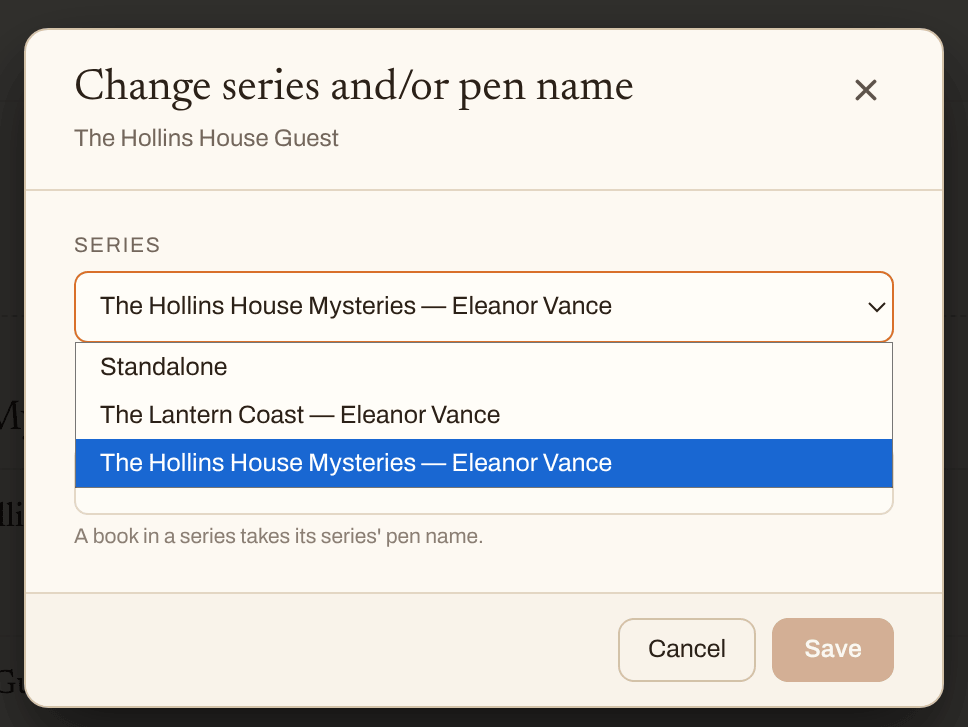 The Change series window for a book, with the Series list open showing Standalone and two series.
What a book takes from its series
- Pen name. A book prints under its series’ pen name. To change it for everyone, use Change pen name and/or universe on the series’ … menu; every book moves with it.
- Byline. The title page prints the book’s own byline if it has one, then the series’ byline, then the pen name. A By-line set on the title page section itself wins over all three. Set a series byline under Series in Book → Details when the printed name should differ from the pen name.
- Publisher. A book with no Publisher of its own uses the series’ one.
- Universe and codex. The book reads the series’ universe.
- Shared sections. See Sections a series shares.
- Pictures kept for the series. Any book in the series can print them; see The media library.
A book does not take its page setup or chapter headers from the series. Each book has its own page setup, which you can change any time under Book → Page setup (Page setup: the basics). A new book starts with a copy of the chapter header setup of the last book on the shelf, then keeps its own (Set up your chapter headers). Moving an existing book into a series changes neither.
Good to know
- A book that leaves a series can no longer use that series’ pictures, shared sections or universe. A picture slot that named a series picture prints empty until you choose another.
- For bylines and publishers in more detail, see Set your byline and publisher (imprints).