The media library
The media library holds every picture your books print: ornaments, opener art, backgrounds, maps, covers. You upload a picture once, then choose it wherever you need it, in one book or many. This page shows you how to add, share, replace and remove them.
Open it
- In the Library, under Manage, click Media library.
- In a book you own or co-write, use Images → Library on the toolbar, or Manage images in the Images menu on a narrower screen. On a phone, it’s More → Media library.
- In any picture chooser, click Manage the library →.
A picture chooser opens when you click Choose… on a picture slot. It shows the same pictures, narrowed to what that book can print.
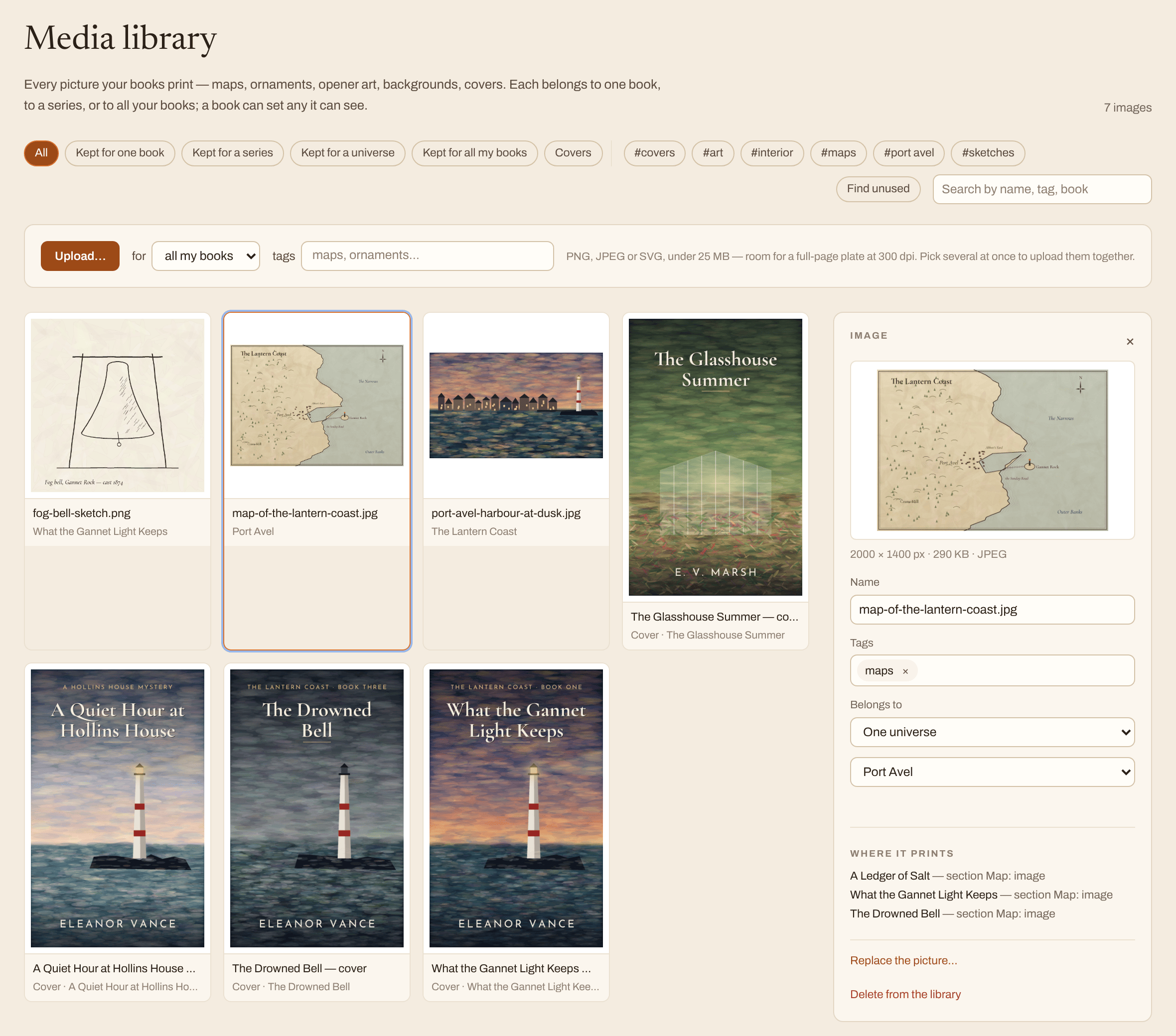 The Media library page with the scope buttons along the top, the Upload… bar above a grid of pictures, and one picture open in the panel on the right.
Upload pictures
- Click Upload…. You can pick several files at once.
- Beside for, choose where the pictures belong: all my books, one universe (if you have universes), one series or one book. Then choose which one; the button stays dimmed until you do.
- Add tags if you like, such as maps. Every file in the batch gets the same home and tags.
Pictures can be PNG, JPEG or SVG, each under 25 MB (an SVG, under 20 MB)—room for a full-page plate at 300 dpi. An SVG prints sharp at any size.
Write cleans every SVG as it comes in: scripts, links to other files and embedded web content are taken out, and the drawing stays. A file that can’t be read as plain SVG is refused; saving it again as plain SVG usually fixes that. An SVG drawn in one ink (painted in currentColor) takes the page’s colour, so it prints black on paper and white on a dark page.
Where a picture belongs
- All my books—every book of yours can print it.
- One universe or one series—every book in it can.
- One book—only that book can.
Uploading from inside a book’s chooser keeps the picture for that book unless you change for. The chooser’s buttons widen outward: This book, This series, This universe, All. It also has Stock (the ornaments that come with Write) and Covers.
Within your own books nothing is copied: two books using a picture are both using the one upload, so a picture you’ll want in several books should belong to a series, a universe or all your books. To change a picture’s home, open it and change Belongs to. If the move would take it out of reach of a page that prints it, Write lists the books and asks first: Move anyway or Keep it here.
Pictures on someone else's book
When you co-write a book someone else owns, its picture chooser has two buttons along the top:
- Images in this book—the pictures this book already has or uses. The owner's other pictures aren't offered; if you need one of them, ask the owner to add it to the book.
- My images—your own pictures, from any of your books, and the stock ornaments.
A picture you add from your own library to someone else's book is copied into that book. The copy belongs to the book's owner, so it prints with the book and stays with it; your original stays in your library, untouched. Choosing the same picture again uses the same copy instead of making another.

Where a picture can print
- A scene-break ornament (Choose a scene-break ornament).
- A chapter’s opening, and the line under a text-message header (Pictures in a chapter opening).
- Your text, including a full page or a spread (Put a full-page picture or a spread in a scene).
- An Image page in front or back matter, or a section’s background (Front and back matter).
- A book’s cover, under Book → Details → Cover: Upload cover, or Choose from the library…. Covers are JPEG or PNG, under 10 MB (Book details: title, ISBNs, cover and description).
- A codex entry, with Add a picture.
Find and look after a picture
Narrow the grid with the scope buttons, a tag, or the search box. Find unused shows only pictures nothing in your books uses. Click a picture to open its panel:
Replace a picture
Click Replace the picture… and choose a new file. Write tells you how many places will show it. Click Replace it to go ahead, or Keep the old one. Every slot, insert and cover that used the picture shows the new file; the name and tags stay. The old file is gone for good.
Remove a picture
Click Delete from the library. A picture that nothing uses goes at once. If it’s in use, you’re told how many places print it, and can choose Delete anyway or Keep it. If you delete it anyway, Write clears it from everywhere:
- a book that used it as its cover has no cover, and a scene-break ornament goes back to the asterisks;
- chapter opening slots, messages lines, section backgrounds and image pages are emptied;
- a picture set into your text stays where it is and prints as empty space of the same height.
Good to know
- Pictures kept for one book or one series are deleted when that book or series is deleted for good. Those kept for a universe or all your books stay.
- Pictures on a codex entry aren’t listed under Where it prints, and a picture used only there shows as unused. Deleting it gives no warning, and the entry keeps pointing at a picture that’s gone—take it off the entry first.
- Find unused doesn’t look inside books you’ve archived (see Archive and restore a book or series), so a picture used only there can show as unused.
- If a book can no longer see a picture (it left the series the picture was kept for, say), the slot says A picture no longer in the library and prints without it.