Working with an AI
Write operates on the paradigm of your favorite AI agent connects into Write, rather than Write connecting out to an AI. What that means is that you chat conversationally with Claude, ChatGPT, or Gemini via your subscription, and those agents can reach into Write and do anything a person can do.
They can add books, reorganize chapters, fill in your book list, about the author, write outlines, read your books and write a codex, the works.
If you're unsure, ask your agent if it can do a task. Chances are very high that it will say yes and go off and do the work.
MCP URL: https://write.authortools.net/mcp
- Connect Claude to Write
- Connect ChatGPT to Write
- What an AI can and cannot do in your books
- Disconnect an AI
- How an AI writes formatting into your scenes
Connect Claude to Write
What connecting means
Write can work alongside an AI assistant. Once connected, the assistant can do in your books the kinds of things you do—read a chapter, draft or revise a scene, keep notes, look something up in the codex, build a PDF—when you ask it to. It signs in as you, so it sees only the books you can see, and nothing in them changes unless you ask for it.
Connecting takes a couple of minutes, and you only do it once per app.
Claude, on the web or in the desktop app
-
In Claude, open Settings, then Connectors, and choose Add custom connector.
-
Give it a name you'll recognize—AuthorTools Write is a good one—and paste this address into the URL field:
https://write.authortools.net/mcp -
Save it, then click Connect. An Author Tools sign-in page opens in a new window. Sign in with your Author Tools account (the same one you use at authortools.net) and click to allow access.
-
Back in Claude, the connector shows as connected. In any conversation, open the tools menu, switch it on, and try asking What books do I have in Write?
 Screenshot: Claude's Settings → Connectors with the Add custom connector form open, the name AuthorTools Write and https://write.authortools.net/mcp filled in.
That's it. Claude will remember the connection from here on.
About the permission screen
When you allow access, Write is granted both reading and writing in one step; there isn't a read-only option at the moment. If you'd rather an AI only looked and never changed anything, the simplest way is to say so in your conversation—and know that whatever it does is saved in your book's history, where you can see it and undo it.
Other assistants
ChatGPT has its own page: Connect ChatGPT to Write. Any other assistant that supports connecting to remote tools (the standard is called MCP) works the same way: add https://write.authortools.net/mcp as a remote server, and the first time you use it, it will send you to the Author Tools sign-in.
If something doesn't work
- The sign-in page wants a password you don't recognize. It's asking for your Author Tools account, not your Claude or ChatGPT account.
- The connector sits there saying "not connected." Usually the address was mistyped. Remove it and add it again, copying the address from this page.
- You signed out of Author Tools in your browser and expected the AI to stop. It won't—the connection has its own sign-in. To stop it, see Disconnect an AI.
Using more than one assistant
Each one connects separately and signs in as you. They don't see each other, and each one's work shows up in the book's history under your name, since each is acting on your behalf. You can see every connection you've made, and end any of them, on your account page under Connected apps.
Connect ChatGPT to Write
What connecting means
Write can work alongside an AI assistant. Once connected, the assistant can do in your books the kinds of things you do—read a chapter, draft or revise a scene, keep notes, look something up in the codex, build a PDF—when you ask it to. It signs in as you, so it sees only the books you can see, and nothing in them changes unless you ask for it.
Connecting takes a couple of minutes, and you only do it once per app.
Before you start
Adding your own connections is something ChatGPT offers on its paid plans (Plus, Pro, Business, Enterprise and Edu). On the free plan the Add button described below isn't there, and nothing on our side can change that. If you're on a Business or Enterprise workspace, an administrator may need to switch connections on for the workspace first.
The written steps are below the video.
Connect ChatGPT in your web browser
- Click your profile icon in the lower left and choose Settings.
- Choose Plugins from the left menu.
- At the top of the page, click the Browse directory button.
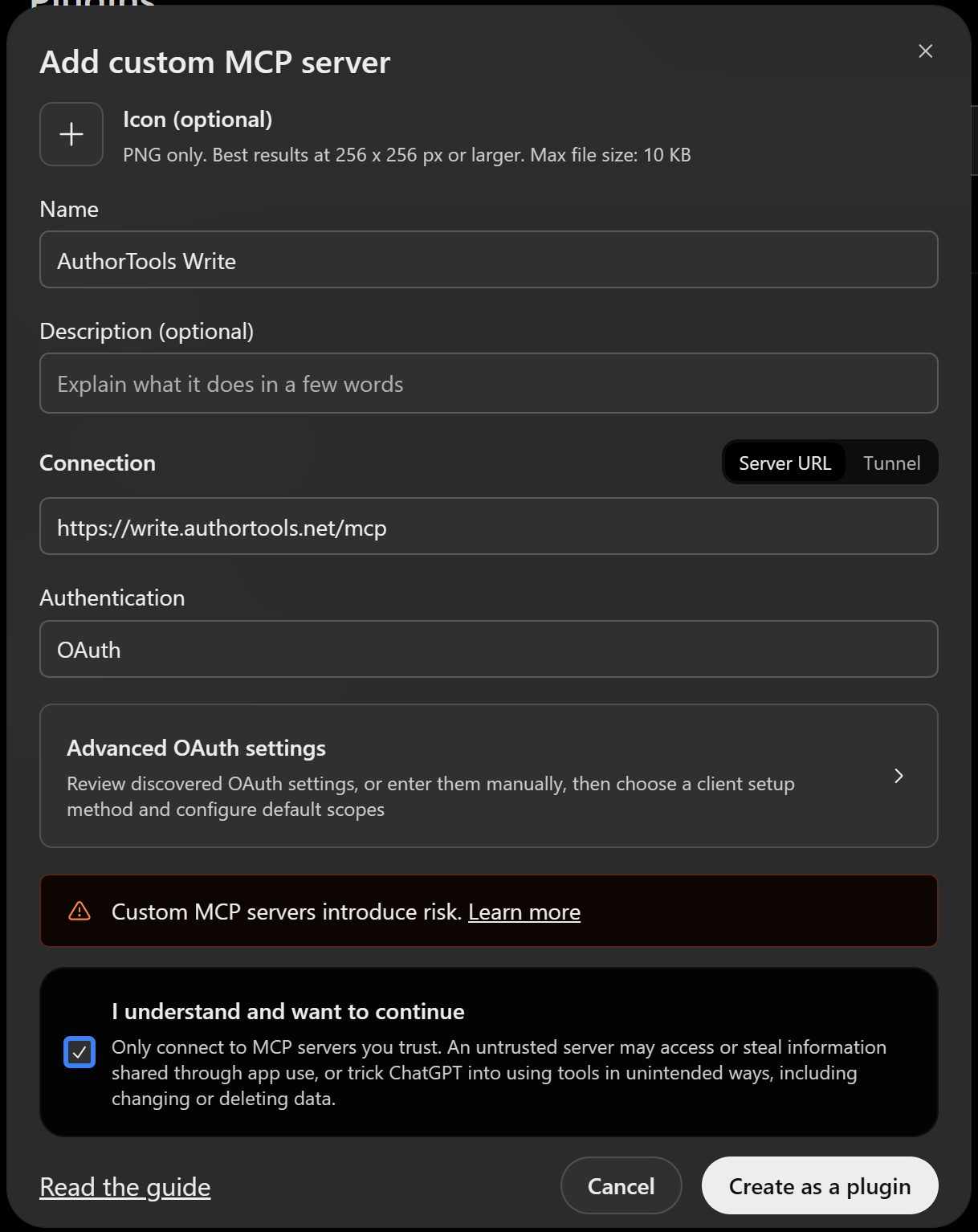
- At the top right of the screen, there will be an Add button. Click it, and then select Add custom MCP server.
- On the next screen, give it a name you'll recognize—AuthorTools Write is a good one—and paste this address into the Connection field:
https://write.authortools.net/mcp - Click Create as plugin at the bottom of the window.
- ChatGPT will validate that it can connect, and then show you a connection button for you to continue to our site
- On our site, click Allow and then ChatGPT will be authorized to use the Write software.
Connect ChatGPT in the desktop app
- Click your profile icon in the lower left and choose Settings.
- Choose Plugins from the left menu.
- At the top right of the screen, there will be an Add button. Click it, and then select Add custom MCP server.
- On the next screen, give it a name you'll recognize—AuthorTools Write is a good one
- On the next row, is Type. Change that from STDIO to Streamable HTTP
- Paste this address into the URL field:
https://write.authortools.net/mcp - Click save at the bottom of the window.
- The page will reload and it will look like nothing has happened. Underneath the "Plugins" title, click the tab that says "MCPs" (with a number following).
- authortools_write will be listed under servers with an Authorize button. Click that button to be taken to our site
- On our site, click Allow and then ChatGPT will be authorized to use the Write software.
Screenshot: The ChatGPT desktop app's Add custom MCP server form, with the name AuthorTools Write, Type set to Streamable HTTP, and https://write.authortools.net/mcp in the URL field.
Screenshot: The ChatGPT desktop app's Settings → Plugins page with the MCPs tab open, showing authortools_write listed under servers with its Authorize button.
About the permission screen
When you allow access, Write is granted both reading and writing in one step; there isn't a read-only option at the moment. If you'd rather an AI only looked and never changed anything, the simplest way is to say so in your conversation—and know that whatever it does is saved in your book's history, where you can see it and undo it.
What to expect once it's connected
Start a new chat and try What books do I have in Write? ChatGPT asks you before it changes anything in a book—adding a scene, say, or renaming a chapter—and just goes ahead with reading. That's ChatGPT's own habit with connected tools, not a sign that something is wrong, and it's a good one.
If something doesn't work
- The sign-in page wants a password you don't recognize. It's asking for your Author Tools account, not your Claude or ChatGPT account.
- There's no Add button. Custom connections are part of ChatGPT's paid plans; see Before you start above.
- ChatGPT only offers to search Write, or says it can read but not change anything. ChatGPT has two ways of using a connection: a plain "research" mode, which can search and read, and a fuller mode that uses everything Write offers. If you're seeing only the first, look in ChatGPT's settings for the connection, under its advanced options, for a switch called Developer mode, and turn it on. Then start a new chat.
- The connector sits there saying "not connected." Usually the address was mistyped. Remove it and add it again, copying the address from this page.
- You signed out of Author Tools in your browser and expected the AI to stop. It won't—the connection has its own sign-in. To stop it, see Disconnect an AI.
What an AI can and cannot do in your books
The short version
A connected AI works as you, in your books, and only when you ask. It can read and write much of what you can, it can't delete anything, and everything it does is saved in the book's history where you can see it and undo it. If that's all you wanted to know, you can stop here.
It sees what you see
When an AI connects, it signs in as you. So it can open the books you can open—your own, and any you've been invited to—and in each one it has the same role you do. On a book you own it can do nearly everything; on a book where you're an editor it can suggest and comment, as you would. It can't reach anyone else's books, and it can't do anything in yours that you couldn't do yourself.
What it can help with
- Reading. Your Library, a book's outline, chapters and scenes as prose, your notes, front and back matter, book lists, the codex, who's on a book, and past builds.
- Writing. Drafting new scenes or whole chapters, revising a scene, finding and replacing across a book, putting chapters and scenes in order, keeping and tagging notes, filling in front and back matter, and looking after the codex—entries, facts, links, calendars, even new types and fields.
- Organizing. Making series, books, parts, pen names and universes; moving a book from one series to another; setting imprints; building a book to PDF or EPUB and telling you where the file is.
- Reviewing. Leaving comments and replying to them, and proposing changes as suggestions for you to accept or reject.
- Tidying. Archiving a chapter, scene, note or codex entry, and bringing it back. Nothing it archives is lost.
What it can't do, on purpose
A few things are kept for people, no matter how an AI is connected:
- Deleting. No AI can delete a book, chapter, scene, note or entry. Deleting is something you do yourself, from the editor.
- Inviting or removing collaborators. An invitation goes out in your name, so it waits for you.
- Accepting or rejecting suggestions, resolving comments, or marking a scene reviewed. These decide what the book is, and that stays with you.
Its changes arrive as suggestions
When an AI revises a scene that already has words in it, nothing is overwritten. The difference between what was there and what it sent shows up as suggestions—the same underlines and strike-throughs you'd see from a human editor—and you accept or reject each one in the Review rail. Until you do, the page still reads as you left it.
There is one exception, and it's there to help. If you've outlined a chapter and added scenes that have no words yet, and you ask an AI to draft them, the draft goes straight onto the page as new content rather than arriving as a wall of suggestions with nothing to compare them to. The scene is marked Written by an AI agent until you've read it and marked it reviewed; once it has words, any further change from an AI comes as suggestions like everything else.
A blank line counts as content too. If you leave a line of air under a point-of-view name at the top of a scene and an AI leaves it out, or an AI adds one you didn't have, that shows up as a suggestion like any other—a line of air—for you to keep or not.
It won't trample your edits
When an AI rewrites a scene, it has to say which version of the scene it read. If you (or another AI) changed that scene in the meantime, the write is politely refused and the AI is told to read it again and reapply its change. Two hands in one scene can't quietly undo each other.
Everything is in the history
Each save an AI makes is a version in the scene's history, just like your own saves, and it shows under your name—the AI is acting for you. If you ever don't like what it did, open the scene's history and bring back the version you want.
Disconnect an AI
Two places you can do it
An AI reaches Write through a connection you approved, and you can end that connection from either side. Both work; the first is the quickest.
From your Author Tools account
Screenshot: The Connected apps section at account.authortools.net, listing at least one connected AI with its connection date, what it was allowed to do and the Disconnect button beside it.
If you see the same name more than once, that's normal: each place you connected from (say, Claude on the web and Claude on your desktop) gets its own line. Disconnect the ones you no longer want.
From the AI's side
In Claude, open Settings → Connectors, find AuthorTools Write, and remove it. Other apps have a similar list of servers or connections where you can take it out. This stops the AI using the connection, though the entry stays on your Connected apps page until you disconnect it there too.
Nothing in your books changes
Everything the AI wrote while it was connected stays exactly where it is. It was your work, done because you asked, and it's in the book's history like any other save. Disconnecting only closes the door going forward.
If you just want a break
You don't have to disconnect to pause. In a conversation, turn the connector off in the tools menu and the AI will leave your books alone until you turn it back on. No signing in again.
Coming back
Connect again the same way you did the first time—Connect Claude to Write—and sign in. There's nothing to restore; it picks up right where you are.
How an AI writes formatting into your scenes
What this is for
When an AI reads or writes a scene through Write's connector, it doesn't see buttons and menus; it sees the scene as plain text with a few light marks for the things a page can do—italics, a scene break, a centred line, a picture, a text-message exchange. Write calls this the text form. You don't have to learn it to work with an AI: the AI already knows it, and whatever it sends arrives in the editor as ordinary formatted prose. This page is here so you can recognise what you're looking at if an AI shows you a draft, and so you can ask for things by name.
The marks
Paragraphs are separated by a blank line. Two blank lines in a row keep one empty paragraph—a line of air, the kind you'd leave under a point-of-view name at the top of a scene.
*emphasis*is italic,**strong**is bold, and***both***is both.^words^set those words in the book's alternate body face—the second font from your page setup, for a sign, a note, or a line the story says is in another hand.- A line of
* * *on its own is a scene break. - A backslash at the end of a line breaks the line inside a paragraph (what Shift+Enter does in the editor).
-> THE END <-is a centred paragraph with no indent.> textis a paragraph indented from the left, for a letter or a quotation;> text <is indented on both sides;- textis a hanging indent, first line flush and the rest in, for a list of names or an appendix entry.[text](https://…)is a link.
A paragraph that happens to begin with one of those marks is written with a backslash first, and a literal asterisk or caret is \* or \^.
Pictures
An image insert is a line of its own: . The id is one of the book's pictures—an AI gets the list from the media library—lines is how tall it prints in lines of your leading, top or bottom pins it to that edge of the page it lands on, and bleed runs it to the edge of the sheet. The caption may be empty.
Two more words give a picture whole pages in print: page puts it on a page of its own (the text fills the page it's on, the picture takes the next page, and the text carries on after it), and spread lays one wide picture across two facing pages, cut at the gutter and always to the edges. For both, lines doesn't apply, and the ebook shows the picture whole where it sits, with its caption. See Put a full-page picture or a spread in a scene for how they print.
Text-message exchanges
An exchange is fenced, one message per line, the sender before a colon:
[chat: Desh | style: phone]
me: Where are you?
Desh: Docking bay four. *Hurry.*

me: Two minutes. Stall them.
[/chat]
meis the character whose phone the reader is looking at—their bubbles sit on the right, unnamed. Anyone else sits on the left, and is named above their bubbles when there's more than one of them.- The header names who the exchange is with, shown above it;
[chat]alone means no header. style:is phone, terminal, holo or paper (torn paper). Left out, the exchange follows the book's default from Chapter header setup, where the colours by person live too.- A blank line between two messages is a pause—time passed before the next one was sent.
- A message's text takes the marks above, and a backslash at the end of a line breaks the line inside one bubble.
Once it's in the editor, the exchange is the same one you'd have made by hand, and everything on Put a text-message exchange in a scene applies—renaming a person, pauses, colours.
What comes back
The text form reads back exactly as it went in: an AI that reads your scene sees your italics, your breaks and your exchanges, and a scene that goes out and comes back unchanged is unchanged. And as everywhere else, an AI's changes to a scene that already has words arrive as suggestions for you to accept or reject, not as edits made behind your back.