
Create your first book
Starting a standalone book
- In the Library, click New book at the top right.
- Type the title. If you have more than one pen name, you’ll be asked which one; if you’ve made more than one page setup, you’ll be asked that too. Otherwise there’s nothing more to fill in.
- Click Add.
The book opens in the editor, empty, with two ways to begin: Add the first chapter, or bring in a manuscript you already have. If the book already exists in Word, Markdown or plain text, importing it is much quicker than starting over—see Import a manuscript.
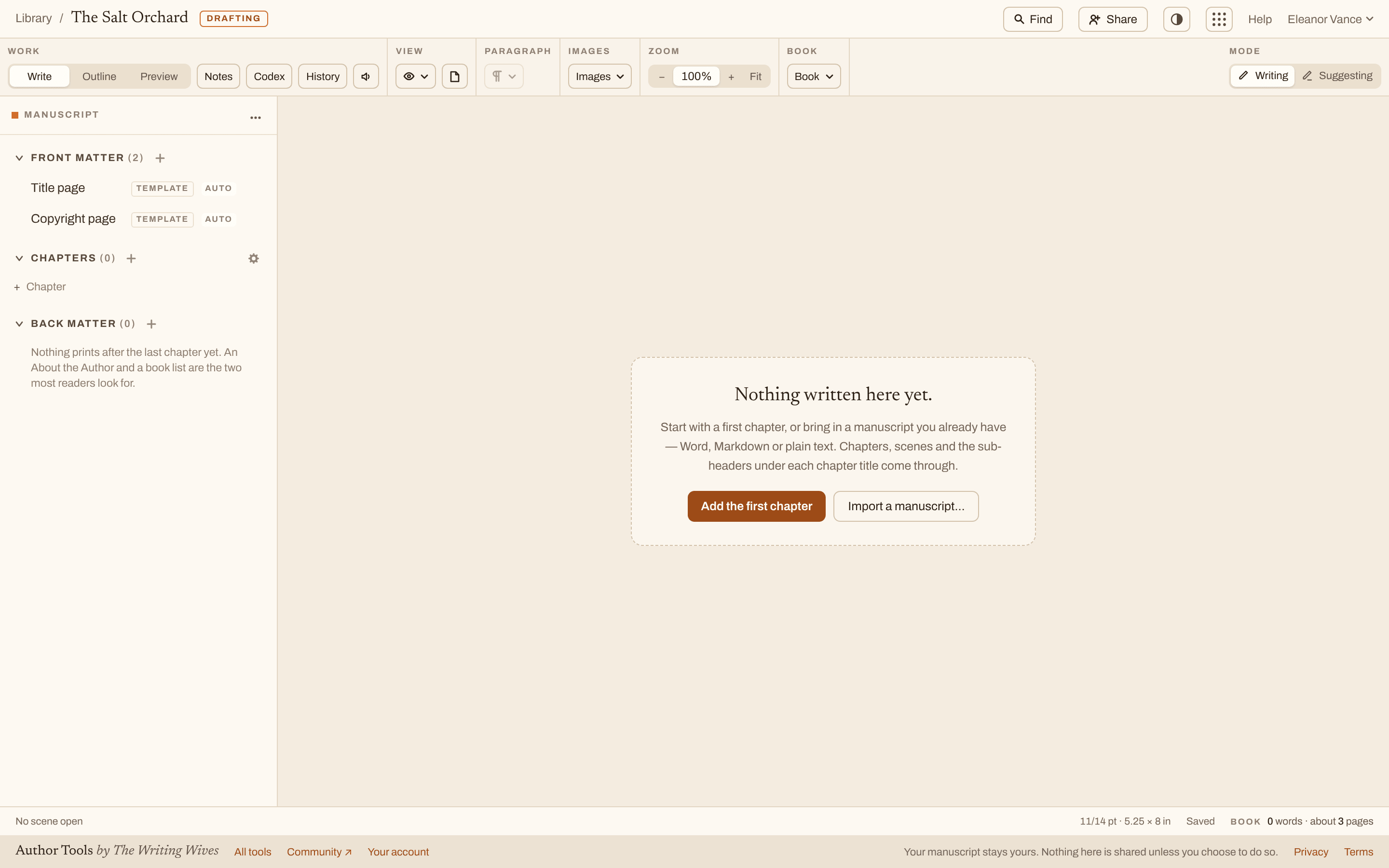 A newly created book open in the editor, empty, showing the Add the first chapter option and the option to bring in a manuscript.
Starting a book in a series
Books that belong to a series are added from the series itself rather than from the top button, so they land in the right place with the right number. Find the series in the Library and click Add book on its row. You’ll be asked for the title and its number in the series—3, say, or 2.5 for a novella that sits between books. Leave the number blank for a prequel or anything that isn’t numbered. A book in a series takes the series’ pen name automatically. For more on numbering and ordering, see Organize the books in a series.
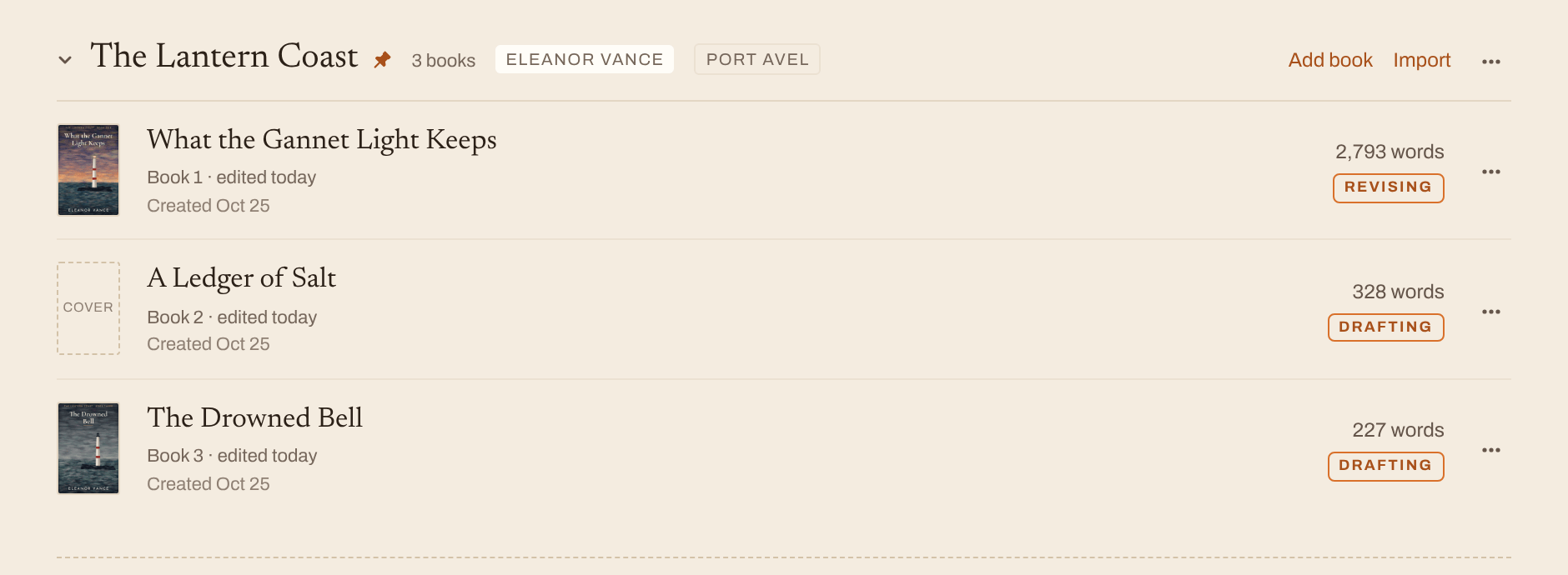 A series in the Library, with its books listed beneath it and the Add book button on the series row.
Don’t have a series yet? New series, beside New book, makes one. It asks for a name—and which pen name, if you have more than one—and offers a universe if your pen name has any: a setting this series shares with others. You can skip the universe for now; it’s easy to add later.
What a new book comes with
- A page setup—trim size, margins, fonts. If you’ve made more than one, you pick it in the form when you add the book; otherwise Write uses the first one in your list, and makes a “Trade paperback 5.25 × 8” setup if you have none yet. You can change it any time from the editor, under Book → Page setup.
- Chapter header settings. A book you add to a series opens its chapters the way the last book in that series does.
- No chapters yet. Any front or back matter the series shares shows up in the list right away, marked as inherited; otherwise those sections arrive as you add them.
Opening it again
Every book is listed in the Library, under its series or on its own row if it’s a standalone. Click the title to open it. The editor remembers, in each browser, which scene you had open last time and takes you straight back to it.
No comments to display
No comments to display