
Find your way around the editor
Three parts to the screen
It helps to think of the editor as three columns.
On the left: your manuscript. The structure of the book, top to bottom—any front matter, then the chapters with their scenes inside, then any back matter. Click a scene to open it. Every chapter has a gear menu and every scene a … menu for renaming, moving, archiving and adding, and + Chapter sits at the bottom of the chapter list.
In the middle: the page. The scene you’re working on, shown the way it will look in print—the same trim size, margins and fonts as your finished book. The page number you see is this scene’s own; the book’s real page numbers are worked out when it’s built.
On the right: rails. Notes opens working notes for the scene, the chapter and the whole book; Codex and History open their own rails, and the three take turns. Notes never print. Everyone you’ve invited to the book can read them; owners and co-authors can write in them. Comments and suggested changes go in the review rail, which is open by default on a wide screen—on a tablet it starts closed, and the Review tab on the right edge brings it back.
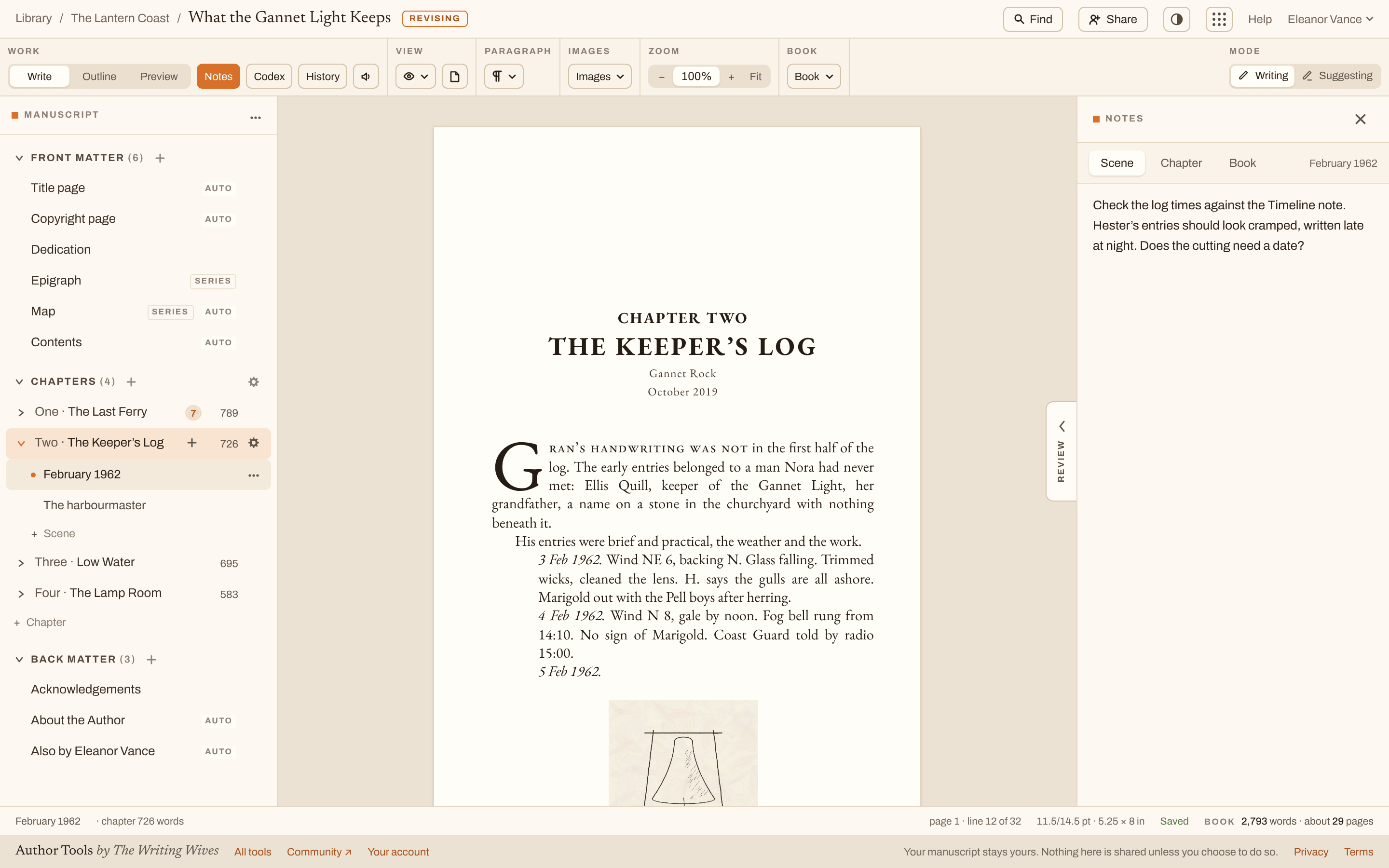 The whole editor with a scene open, showing the manuscript list on the left, the printed-looking page in the middle and the Notes rail open on the right.
The toolbar
 The editor’s toolbar on a wide screen, with its labelled groups—Work, View, Paragraph, Images, Zoom, Book and Mode.
- Work—the Write · Outline · Preview switch (Outline is the whole book as a list of scenes with their summaries; Preview shows the printed pages); Notes; Codex, for the people and places a scene mentions; History, for earlier versions; and Listen, which reads aloud from your cursor—a lovely way to catch the sentences that don’t quite flow. Find (Ctrl+F, or Ctrl+H to replace) is the button in the bar at the very top, beside Share.
- View—Show turns on margin guides, a dark page, underlined codex names and the outline beside the page; Layout switches between Print format and Full width. The light and dark themes are in the half-filled circle at the top right; see Change how the editor looks.
- Paragraph—the style of the paragraph your cursor is in (Ctrl+Shift+E centres it).
- Images—place a picture from your media library after the current paragraph, or open the library itself (The media library).
- Zoom—or hold Alt and scroll. Fit sizes the page to the space you have.
- Book—Details, which opens Book details (title, imprint, cover; see Book details: title, ISBNs, cover and description); Page setup (trim, margins, fonts; for the book’s owner); and Publish, which builds the PDF or EPUB. In a narrower window, Book is a menu with the same three items.
- Mode—Writing or Suggesting. In Suggesting, every change is marked for the author to accept or reject later. If you’ve been invited to a book as an editor, you may find you’re kept in this mode; that’s by design.
The bar shows every label only on a wide screen, about 1620 pixels and up. Below that it gets more compact: View and Paragraph show only icons (so the paragraph style isn’t named), and Images and Book fold into menus with the same items.
The bar at the very top
Above the toolbar, the breadcrumb shows where you are (the Library, the series, the book). On the right, Find searches the scene, chapter or book, and Share is where you invite a co-author, an editor or a reader. The half-filled circle opens Appearance, and Help opens this help site in a new tab. Your name opens a small menu with Your account, Feedback & help and Sign out. Feedback & help opens the support drawer, where you can ask a question or tell us what’s not working; a Feedback tab on the right edge of the screen does the same. See Send feedback or ask for help.
On a tablet or phone
Under 1280 pixels wide the layout changes. On a tablet the manuscript list slides in from the left when you tap the three-line button at the left of the toolbar, and the toolbar groups fold into menus. On a phone the screen is the text with a Write · Suggest · Outline switch above it and a bar along the bottom: Manuscript, Review, Notes, Display (how the text looks on your phone) and More (Find and replace, Listen, Page setup, Book details, Share, Publish, Feedback & help). History and Preview aren’t on the phone yet. See Write on a phone or tablet.
Saving happens by itself
There’s no save button. Write saves as you type, and the little word at the bottom right—Saved or Saving…—tells you where it’s at. Once it says Saved, you can close the tab whenever you like. Write also keeps a version every few minutes while you work, plus one before any big change, so an earlier draft of a scene is always there to go back to.
If your connection drops, or Write is briefly out of reach, it says Not saved and keeps trying on its own until your words get through. You don’t need to do anything. Meanwhile, this browser holds on to what you’ve written. If the tab closes before your words reach Write, open the scene in the same browser and a note at the top offers to Put them back.
If you’re signed out while you have words waiting—your session ran out, say—Write doesn’t take you away from the page. A note says so, with Sign in again, which opens the sign-in in a new tab. Once you’re in, come back to your tab and it saves by itself.
Now and then Write pauses for planned maintenance. A bar at the top says when, and a minute before the pause anything you’ve typed is saved. During the pause you can keep reading what’s open, but typing and saving wait—the word at the bottom right reads Paused for maintenance—and everything comes back by itself when the window ends. See Notices and maintenance.
If a scene was changed somewhere else
With the same scene open in two places—two windows, a laptop and a tablet—Write keeps them in step. If both have changes of their own at once, the word at the bottom right reads Needs a decision and a note at the top shows exactly what differs: struck words are only in the saved copy, underlined words only in this window. Save the struck-through copy keeps the saved one, and is usually right, especially in a window that’s been open a while; Save the underlined copy puts what’s in this window in its place. Either way, the one you didn’t choose is kept in History, so nothing is lost.
Word count
The bar at the bottom of the editor shows your chapter’s word count on the left and, on the right, the whole book’s total with an estimate of its page count. Each scene’s own count is in the Outline. In the Library, every book row shows its count, and the line under the heading adds them all up.
Picking up where you left off
This browser remembers the scene you had open in each book. Come back tomorrow and you’ll land right there.
No comments to display
No comments to display