
Keep notes beside your book
This page is about notes: the reminders you leave on a scene or chapter, and the longer documents—research, a to-do list, a scrap of worldbuilding—you keep beside the book. None of it ever prints.
Open your notes
Click Notes in the toolbar at the top of the editor (on a phone, tap Notes in the bottom bar). A panel opens on the right (on a phone, it fills the screen) with three tabs: Scene, Chapter and Book. Click Notes again to close it.
 Screenshot: the notes panel open, on the Book tab, with a few lines of notes typed in.
Notes on a scene or chapter
The Scene tab is a scratch pad for the scene you have open—what still needs doing, what to check, what you were thinking when you stopped. The Chapter tab is the same for the whole chapter: “cut the second argument,” “check the date against book 3.” Type, and the note saves when you click away from the box.
These notes travel with their scene or chapter, so when you open a different scene, the panel shows that scene’s notes instead.
The book’s notes
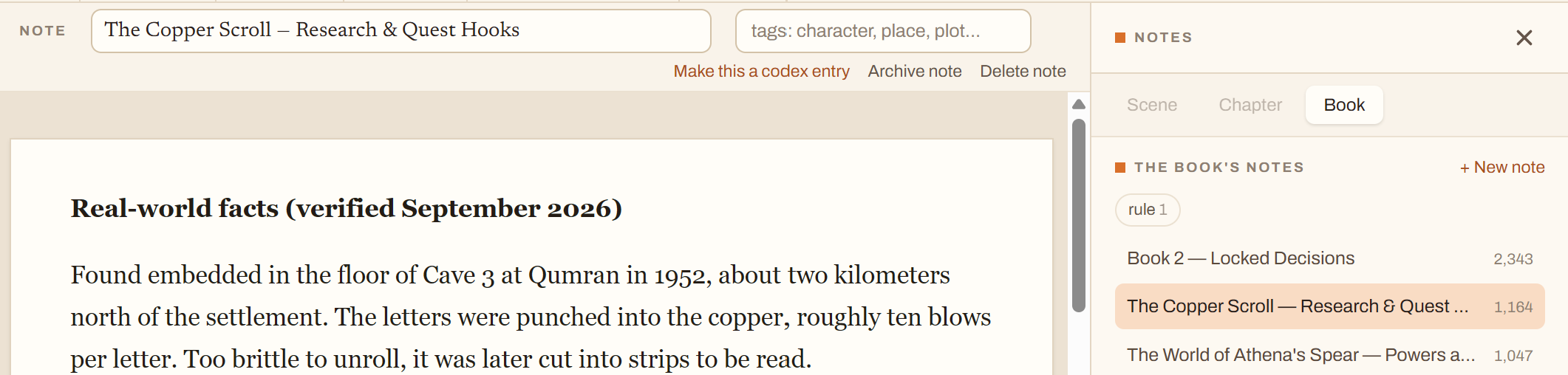
The Book tab holds whole documents. Click + New note to start one; it opens in the middle of the screen, in a wide editor with all the usual formatting, and you can give it a title at the top. Click a note in the list to open it again, and drag the list into whatever order suits you.
Tags
Under the title, add a few tags—character, place, plot, or any word you like. Once your notes have tags, they appear as small buttons at the top of the list, each with a count. Click one to show only those notes; click it again to see them all. Over time this becomes a small bible for the book that you can sort through.
Turn a note into a codex entry
If a note about a character or place deserves a proper home, click Make this a codex entry at the top of the note. A window asks which type of entry it should be and offers to archive the note afterwards (it does by default). If your book isn’t in a universe yet, the owner can name one there. Click Make the entry and the note becomes an entry in your universe’s codex; the note is marked codex and keeps a link to it. See Notes that become codex entries.
Archive or delete a note
Archive note sets a note aside without losing it. Archived notes gather under Show archived at the bottom of the list; click Restore beside one to bring it back.
Delete note removes it for good. It asks first, and suggests archiving instead if you’d like to keep the text.
Who sees your notes
Everyone you’ve invited to the book can read its notes, so they’re a good place for things your co-author or editor should know. Owners and co-authors can write and change them. During a planned maintenance pause you can still read your notes, but changes wait until Write is back (see Notices and maintenance).
If you’ve connected an AI assistant to Write, it can read your notes and write new ones—a handy place for it to leave research or a list of things it noticed. It can also rewrite an existing note, and that replaces the note’s whole text; Write keeps no earlier copy of a note, so ask for a new note rather than a change to one you care about. See What an AI can and cannot do in your books.
No comments to display
No comments to display