
Connect the Meta Ads connectors in ChatGPT
If you haven't installed the plugin yet, start with Install the Meta Ads plugin in ChatGPT.
The five connectors
Add each of these, using exactly the name and address shown:
| Name | Address |
|---|---|
| Facebook Ads | https://mcp.facebook.com/ads |
| AuthorTools Ads | https://flightdeck.authortools.net/mcp |
| AuthorTools Copy Suite | https://ad-copy.authortools.net/mcp |
| AuthorTools Ad Images | https://ad-images.authortools.net/mcp |
| AuthorTools Video Suite | https://video.authortools.net/mcp |
Add a connector
This works the same in the ChatGPT desktop app and on chatgpt.com.
- Click your name in the lower left and choose Settings, then Plugins, then Browse directory.
- At the top right, click Add, then Add custom MCP server.
- Fill in Name and the Server URL under Connection with one row from the table above. Leave Authentication set to OAuth.
- Tick I understand and want to continue, then click Create as a plugin.
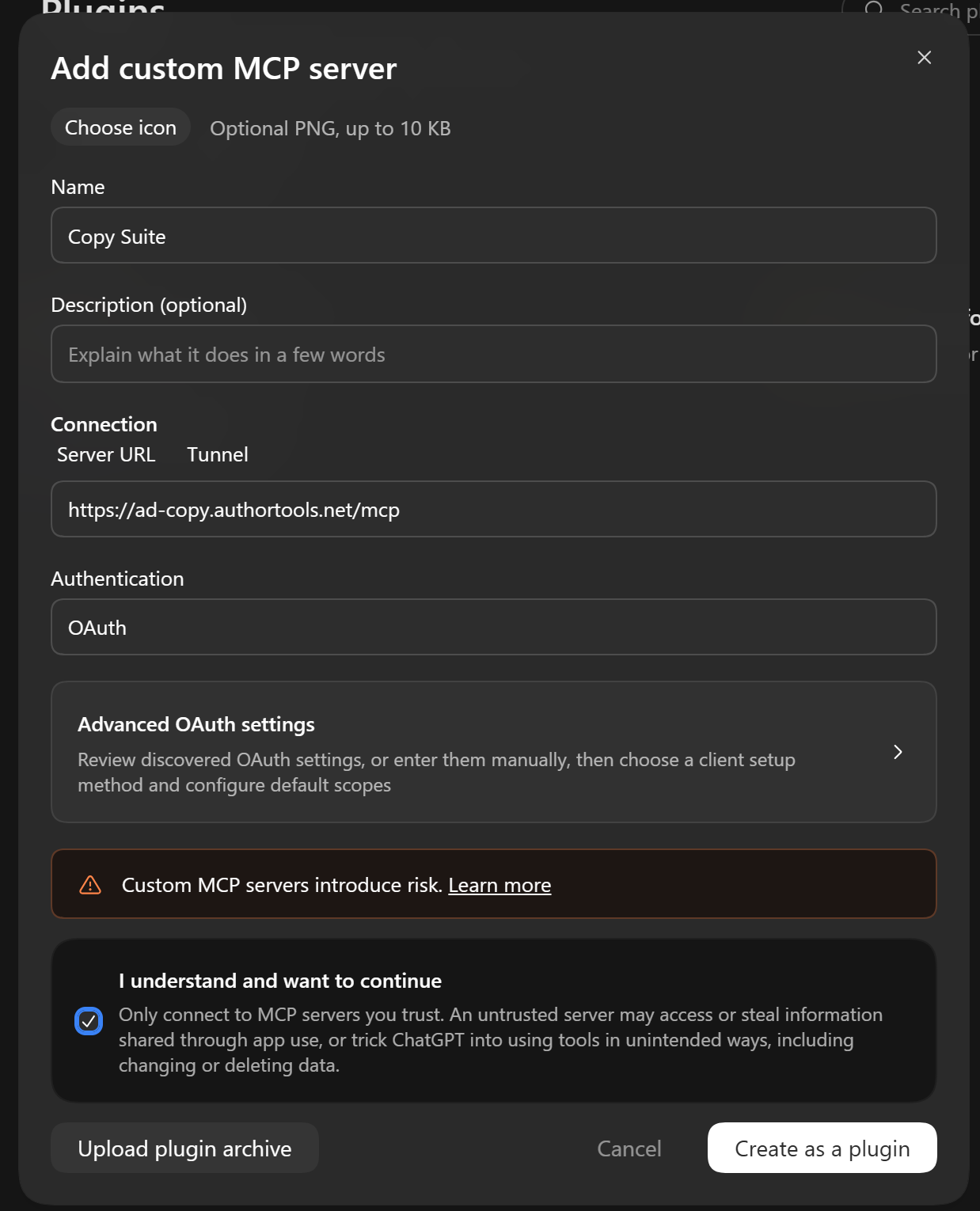 Screenshot: ChatGPT's Add custom MCP server window with the name AuthorTools Copy Suite, https://ad-copy.authortools.net/mcp in Server URL, Authentication set to OAuth, the I understand box ticked, and the Create as a plugin button.
ChatGPT shows a note that custom servers carry some risk. That's ChatGPT's standard note for anything it didn't make; these addresses are Author Tools' and Meta's own.
- ChatGPT opens a Connect window for that connector. Click the Connect button on it.
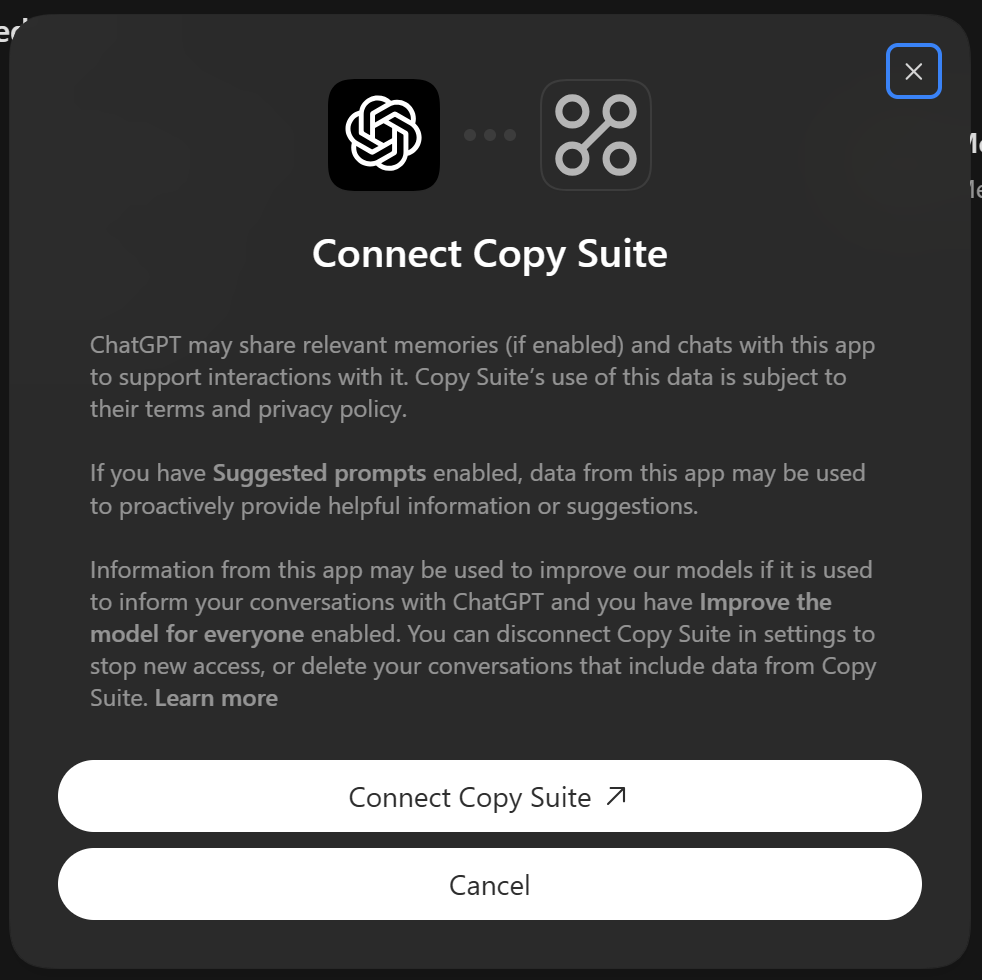 Screenshot: ChatGPT's Connect Copy Suite window, with the Connect Copy Suite button.
- Sign in where it sends you:
- The four Author Tools connectors open an Author Tools page. Sign in with your Author Tools account if it asks, then click Allow.
- Facebook Ads opens Meta's own pages: see the next section.
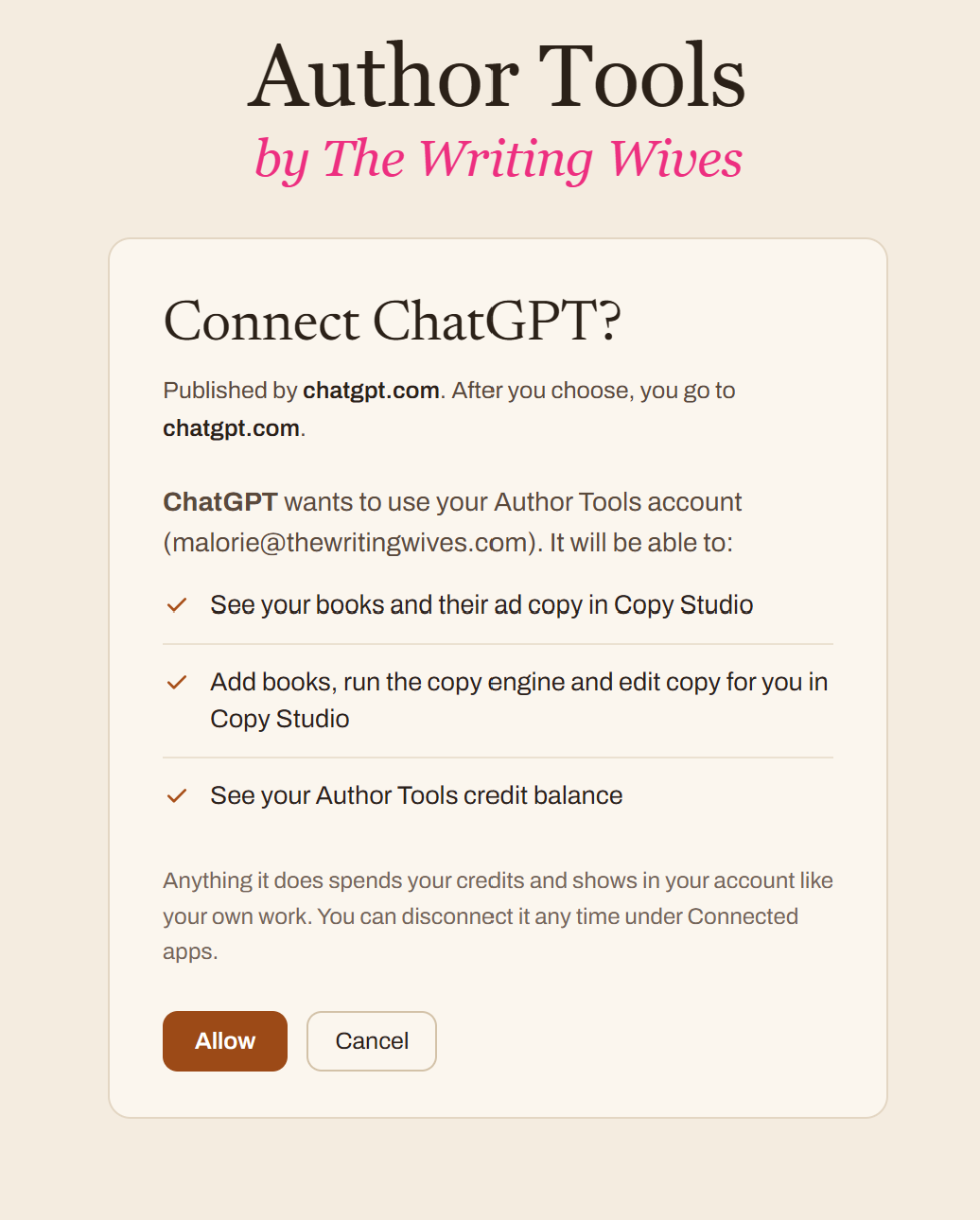 Screenshot: The Author Tools page headed Connect ChatGPT?, listing what ChatGPT will be able to do, with the Allow button.
You're taken back to ChatGPT, and the connector appears under Plugins → Personal. Then add the next one.
Connecting Facebook Ads
Meta asks a few questions before it lets ChatGPT in. Your answers set what ChatGPT can reach in your Meta account:
- Connect ChatGPT to ads MCP server? Click Continue. If it shows the wrong Facebook account, choose Log into another account first.
- Pages, then Businesses, then Instagram accounts. Choose the ones you run ads for, or all of them, and click Continue on each.
- Review what ChatGPT will be able to access. Meta lists the permissions; scroll to the bottom and click Save.
- ChatGPT has been connected. Click Got it.
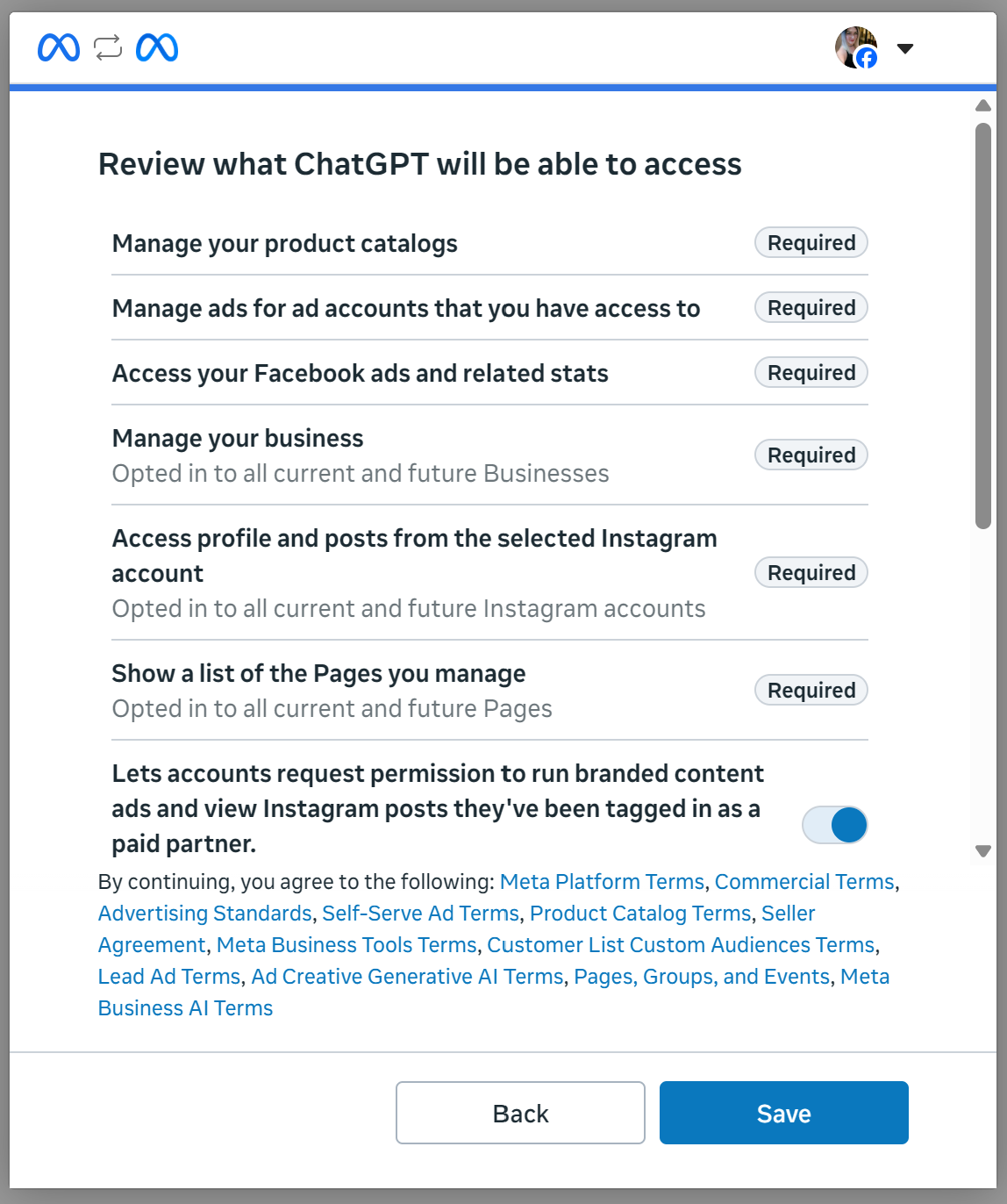 Screenshot: Meta's Review what ChatGPT will be able to access page, listing managing ads and ad accounts, the Pages and Instagram accounts chosen, and the Save button.
The permissions page looks like a lot. It's what Meta asks of any tool that manages ads, and ChatGPT asks you before it changes anything in your ad account. You can see or end the connection later in Meta's Business Integrations.
Check that it worked
Open Settings → Plugins and choose Personal. You should see the five connectors you added, along with the Meta Ads plugin. Then start a new chat and say set me up for Meta ads.
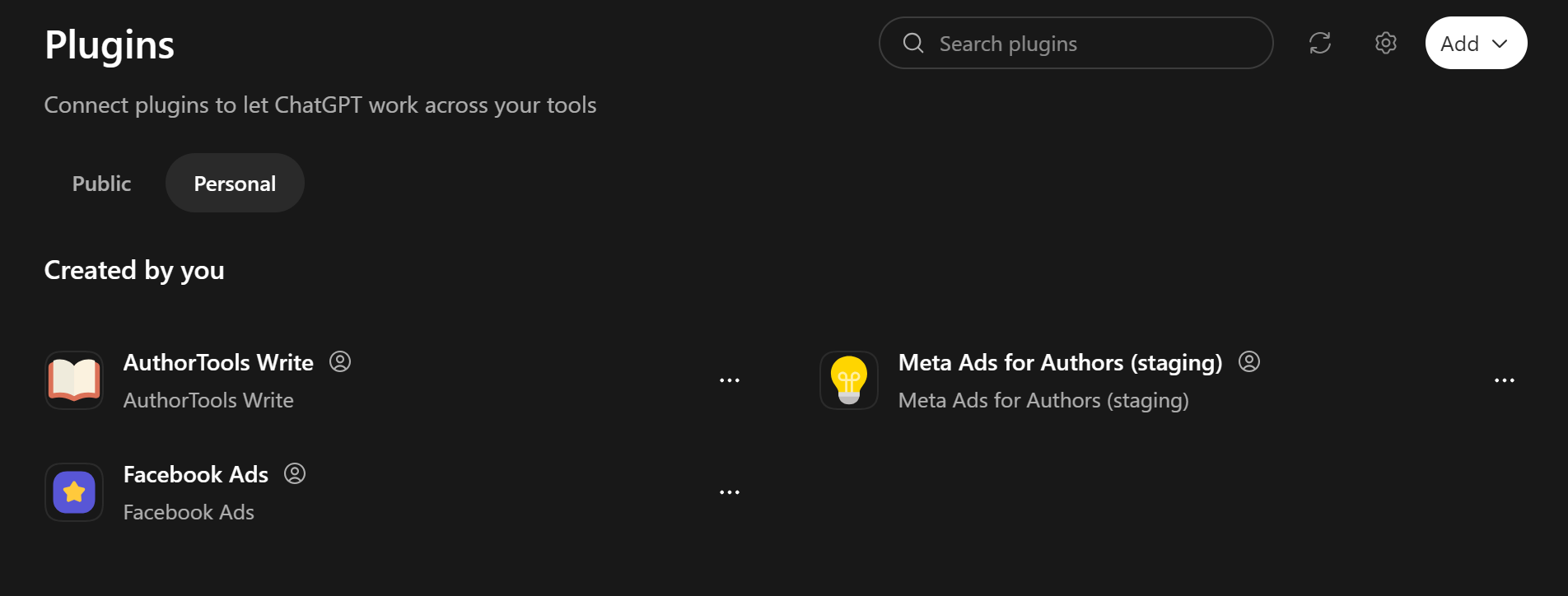 Screenshot: ChatGPT's Plugins page on the Personal tab, with the added connectors listed under Created by you.
If something doesn't work
- There's no Add button. Custom connections are part of ChatGPT's paid plans.
- ChatGPT only offers to search, or says it can read but not change anything. ChatGPT has a plain "research" way of using a connection and a fuller one. If you're only getting the first, look in the connection's advanced options for a switch called Developer mode, turn it on, and start a new chat.
- The Author Tools sign-in wants a password you don't recognize. It's asking for your Author Tools account, not your ChatGPT account. Sign in with the link Author Tools emails you, or with your password if you've set one on your Profile page.
- A connector says it couldn't connect. Usually the address was mistyped. Remove it and add it again, copying the address from the table above.