
Make an excerpt
An excerpt is a few chapters of a book on their own, as an EPUB or a print PDF: a reader magnet, the opening chapters for an email sequence, a sample for a newsletter swap. It's made from the book itself, so it always matches the current text, and it can carry front and back matter of its own, such as a last page with the link to buy the book.
Choose the front and back matter
Each section of front and back matter has a Prints in choice, at the top of the section when you open it from the manuscript tree:
- the book only: the whole book prints it, and an excerpt leaves it out. Most sections start here, like a dedication or an afterword.
- the book and excerpts: both print it. The title page, copyright page and contents start here.
- excerpts only: only an excerpt prints it, and the whole book leaves it out. Use this for an excerpt's own end page, like "Keep reading" with the link to the book.
So for an email-sequence excerpt you might keep the title page, copyright and contents on the book and excerpts, and add a "Keep reading" back matter section set to excerpts only.
Publish it
- Open the book and choose Publish (Book → Publish; Publish… under More on a phone).
- Under Format, choose Print PDF or EPUB.
- Under What to publish, choose An excerpt. The (?) beside the title gives a short reminder of how excerpts work.
- Pick the From chapter and To chapter. The excerpt takes those two and every chapter between them.
- Read the Preflight list, then click Publish PDF excerpt or Publish EPUB excerpt.
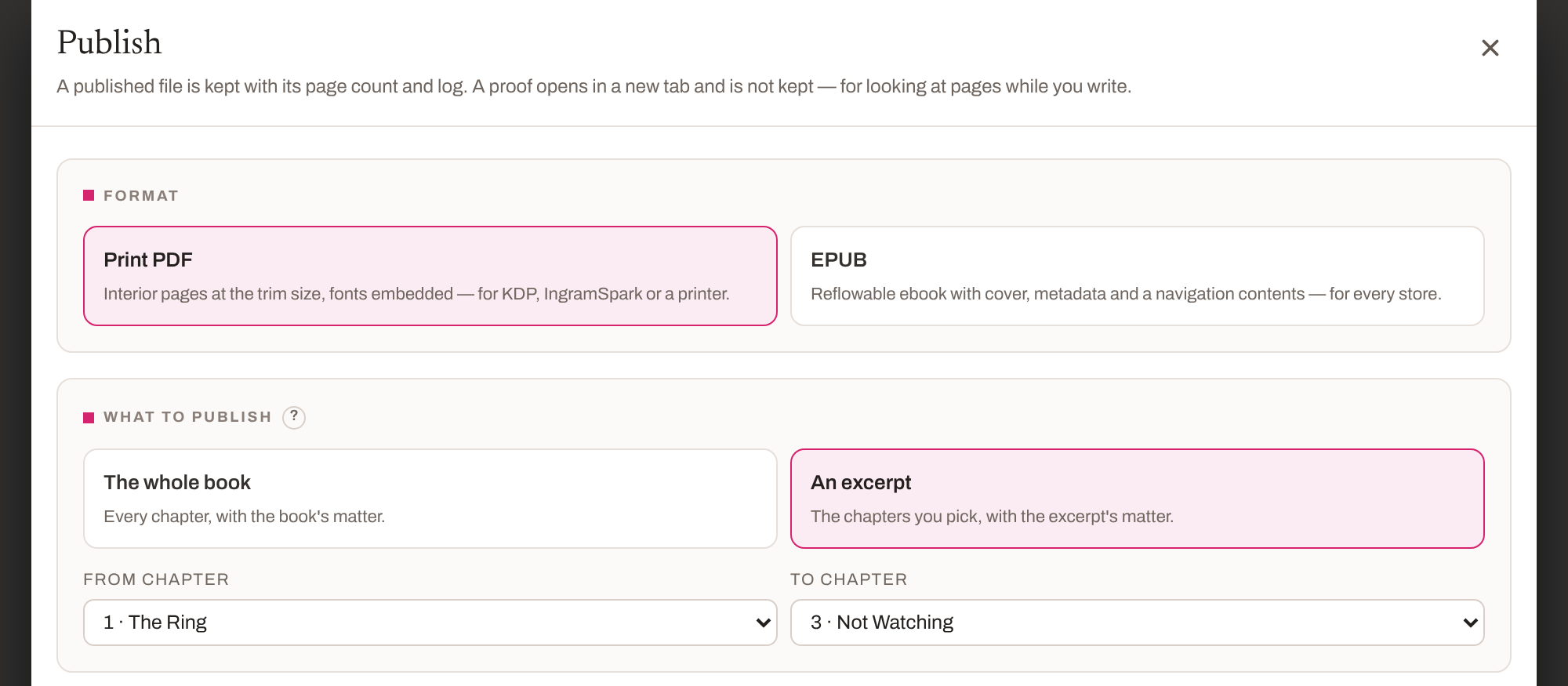 The Publish window with Print PDF and An excerpt chosen, from chapter 1 to chapter 3.
The excerpt appears under Files, tagged Excerpt with its chapters, like "Chapters 1–3", or "Prologue – Chapter 2" when one end has no number. Write remembers the range for that book, so next time Publish opens on the same chapters.
What's in the file
- Only the chapters you picked, keeping the numbers they have in the book. The contents page lists just those.
- The sections set to the book and excerpts or excerpts only, in their usual places.
- The PDF uses the page setup you choose in Publish, the same as the whole book's PDF.
- The EPUB uses the book's cover and is titled "Your Title – Excerpt". It gets its own identifier, never the book's ISBN, so an e-reader keeps it beside the book rather than replacing it.
Good to know
- For now, an excerpt's copyright page is the book's own, ISBNs included. That's fine for a reader magnet or an email sequence. If you're sending an excerpt somewhere that will catalogue it, say so in the copyright text, or give the excerpt a copyright page of its own set to excerpts only and set the book's to the book only.
- An omnibus can't make an excerpt, because its chapters belong to its books. Make the excerpt from one of the books instead.
- A whole-book build never includes a section set to excerpts only.
See also Publish a print PDF, Publish an ebook (EPUB) and Choose where a section appears: print, ebook or both.
No comments to display
No comments to display