
Connect ChatGPT To Write
What connecting means
Write can work alongside an AI assistant. Once connected, the assistant can do in your books the kinds of things you do—read a chapter, draft or revise a scene, keep notes, look something up in the codex, build a PDF—when you ask it to. It signs in as you, so it sees only the books you can see, and nothing in them changes unless you ask for it.
Connecting takes a couple of minutes, and you only do it once per app.
Connect ChatGPT via the your web browser
- Click your profile icon in the lower left and choose Settings.
- Choose Plugins from the left menu.
- At the top of the page, click the Browse directory button.
- At the top right of the screen, there will be an Add button. Click it, and then select Add custom MCP server.
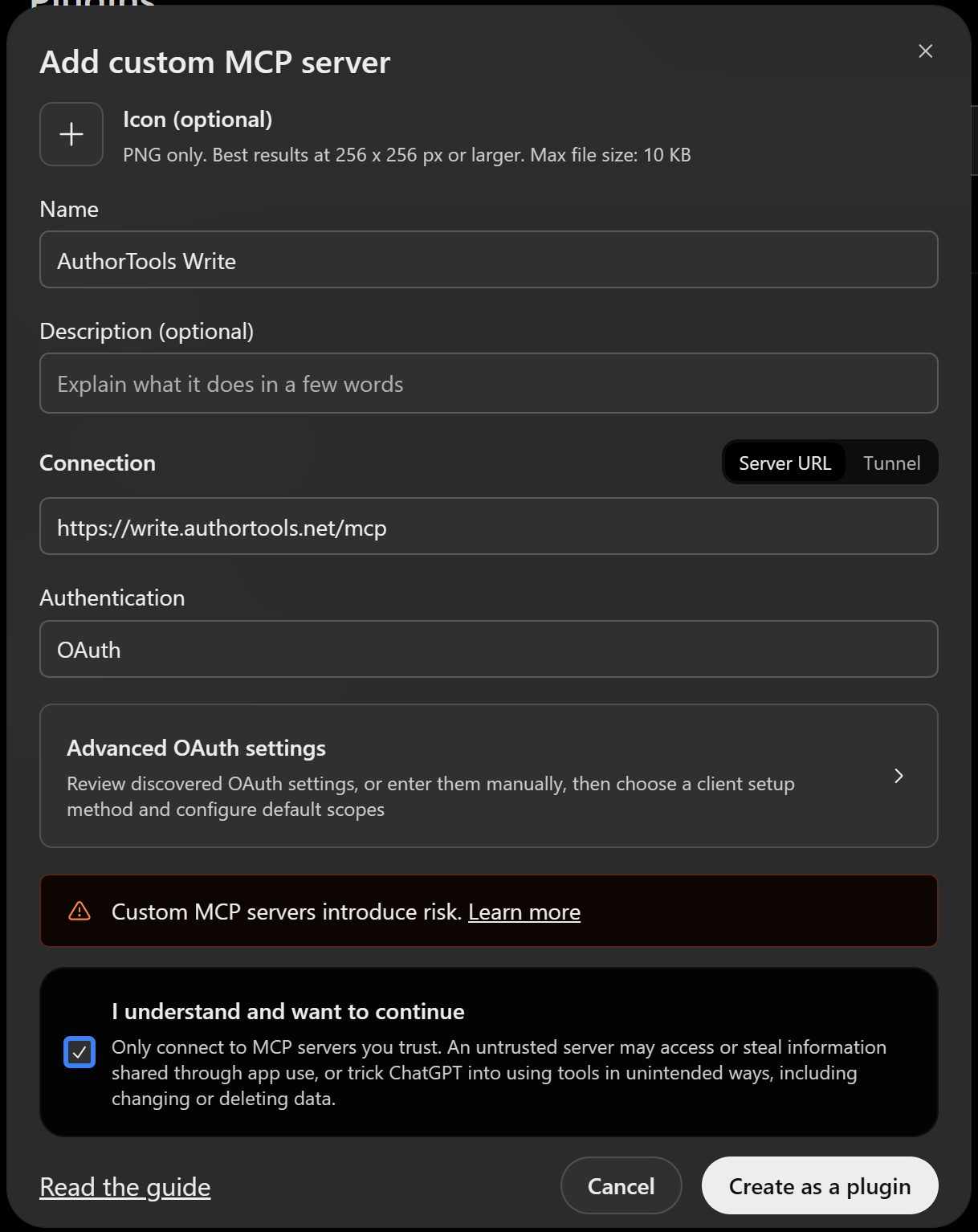
- On the next screen, give it a name you'll recognize—Author Tools Write is a good one—and paste this address into the Connection field:
https://write.authortools.net/mcp - Click Create as plugin at the bottom of the window.
- ChatGPT will validate that it can connect, and then show you a connection button for you to continue to our site
- On our site, click Allow and then ChatGPT will be authorized to use the Write software.
Connect ChatGPT via the desktop app
- Click your profile icon in the lower left and choose Settings.
- Choose Plugins from the left menu.
- At the top right of the screen, there will be an Add button. Click it, and then select Add custom MCP server.
- On the next screen, give it a name you'll recognize—Author Tools Write is a good one
- On the next row, is Type. Change that from STDIO to Streamable HTTP
- Paste this address into the URL field:
https://write.authortools.net/mcp - Click save at the bottom of the window.
- The page will reload and it will look like nothing has happened. Underneath the "Plugins" title, click tab that says "MCPs" (with a number following).
- authortools_write will be listed under servers with an Authorize button. Click that button to be taken to our site
- On our site, click Allow and then ChatGPT will be authorized to use the Write software.
About the permission screen
When you allow access, Write is granted both reading and writing in one step; there isn't a read-only option at the moment. If you'd rather an AI only looked and never changed anything, the simplest way is to say so in your conversation—and know that whatever it does is saved in your book's history, where you can see it and undo it.
If something doesn't work
- The sign-in page wants a password you don't recognize. It's asking for your Author Tools account, not your Claude or ChatGPT account.
- The connector sits there saying "not connected." Usually the address was mistyped. Remove it and add it again, copying the address from this page.
- You signed out of Author Tools in your browser and expected the AI to stop. It won't—the connection has its own sign-in. To stop it, see Disconnect an AI.