
Write, Outline and Preview
The editor has three ways of looking at your book, and you can flip between them at any time from the Write · Outline · Preview switch in the toolbar. This page explains what each is for.
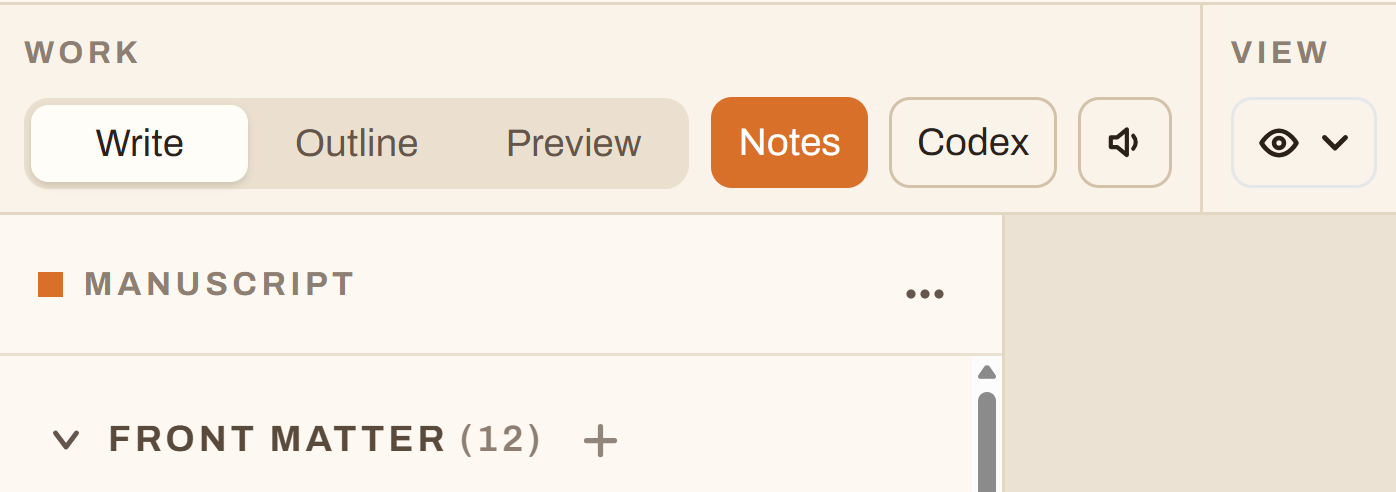
Screenshot: the toolbar's Work group, with the Write · Outline · Preview switch and the Notes, Codex and Listen buttons beside it.
Write
Where you'll spend most of your time: one scene at a time, on the page, as it will print. Pick a scene in the manuscript list on the left and write.
Outline
The whole book on one screen, as a plan. Each chapter shows its title and a line for what happens in it; under it, each scene has a row with its title, point of view, when and where it happens, a status (Draft, Revised or Final), a short synopsis, and its word count.
Everything in the outline can be typed into directly, so it works however you plan:
- If you outline chapter by chapter, fill in each chapter's synopsis and leave the scenes to their titles.
- If you outline scene by scene, add empty scenes and write a synopsis for each. They sit in the outline, ready to be drafted later.
You can also rearrange the book here:
- Drag a scene to anywhere in the book, including into another chapter.
- Drag a chapter by its handle. It joins the part of whatever it lands beside.
- Add a scene puts an empty one at the end of a chapter. A thin line appears between any two chapters when you hover there; click it to add a chapter in between.
Click a scene's title to open it in Write. Nothing in the outline prints; it's yours.
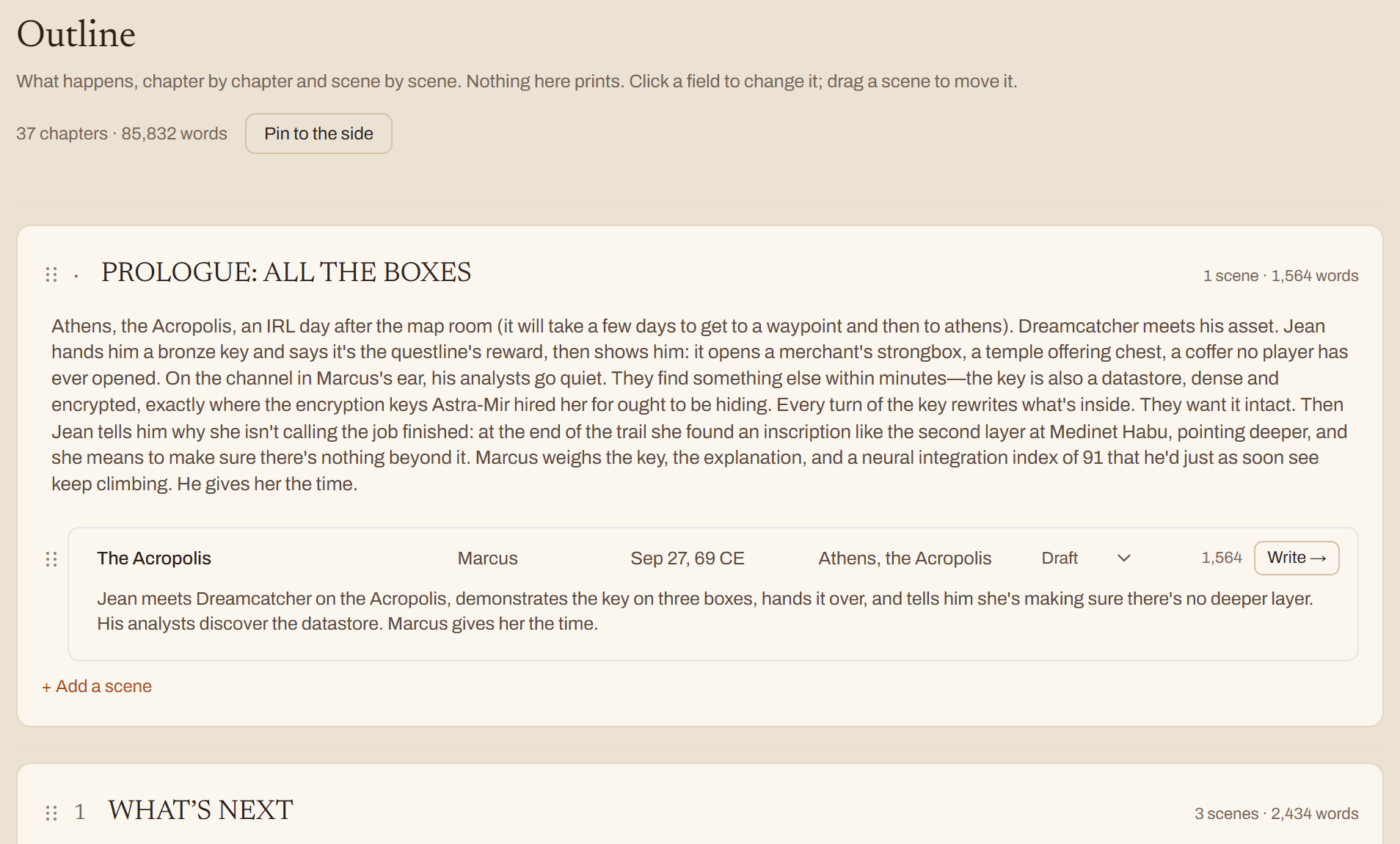
Screenshot: the Outline view with two chapters, their synopses, and the scene rows showing POV, When, Where, status and word counts.
The outline beside the page
If you'd like the outline in view while you write, turn on Outline at the side from the Show menu in the toolbar. A slimmer version sits in a rail beside the page.
Preview
Your pages exactly as they'll print, many at a time, like zooming out in a word processor to see the shape of things. It's the same typesetting the print PDF uses, so a chapter opening, a picture or a stray line at the end of a chapter looks here just as it will in the book.
- Preview opens on whatever you have open in Write: the front- or back-matter section you're looking at, otherwise your chapter. Pick a chapter, a section or the whole book to preview something else. An omnibus with nothing open asks first, since the whole omnibus is every page of every book in it.
- The size slider zooms the pages in and out.
- Click a page to open the scene that's on it in Write.
Preview takes a moment to set the pages, especially for the whole book; they appear as they're ready.
A line or two alone at the end of a chapter
When the whole book is previewed, a Fit bar lists any chapter that ends with a line or two alone on its last page, with a few paragraphs that could pull it back (Tighten) or push it on (Loosen). Click one and Write sets that paragraph a hair tighter or looser, sets that chapter again, and puts it back into the pages in front of you in a few seconds. The chapter's line in the Fit bar then says whether it worked.
- A nudge belongs to the page setup you made it in. Tightening a paragraph in your 6 × 9 omnibus leaves the same book's 5.25 × 8 paperback exactly as it was.
- If the chapter now runs a page shorter or longer, the pages after it move along but keep their old page numbers until you click Set the whole book again. A note above the pages says so.
- A nudge is one small step, so a paragraph you've tightened shows Tightened with Undo beside it instead of offering to tighten it again.
- If you've tried the tightenings and the line is still alone, click Clear all tightenings under the chapter to take them all off at once, then try loosening instead. The same works the other way round.
- You can also take a nudge off in Write: put the cursor in the paragraph and use the Paragraph menu.