
Find your way around the Library
What the Library is for
The Library is home: every series and book you have, grouped under the pen names you publish them with. The line under the heading keeps count—series, books, words—and the search box finds a series or title by name. If you’ve set something aside, Show archived brings it back into view.
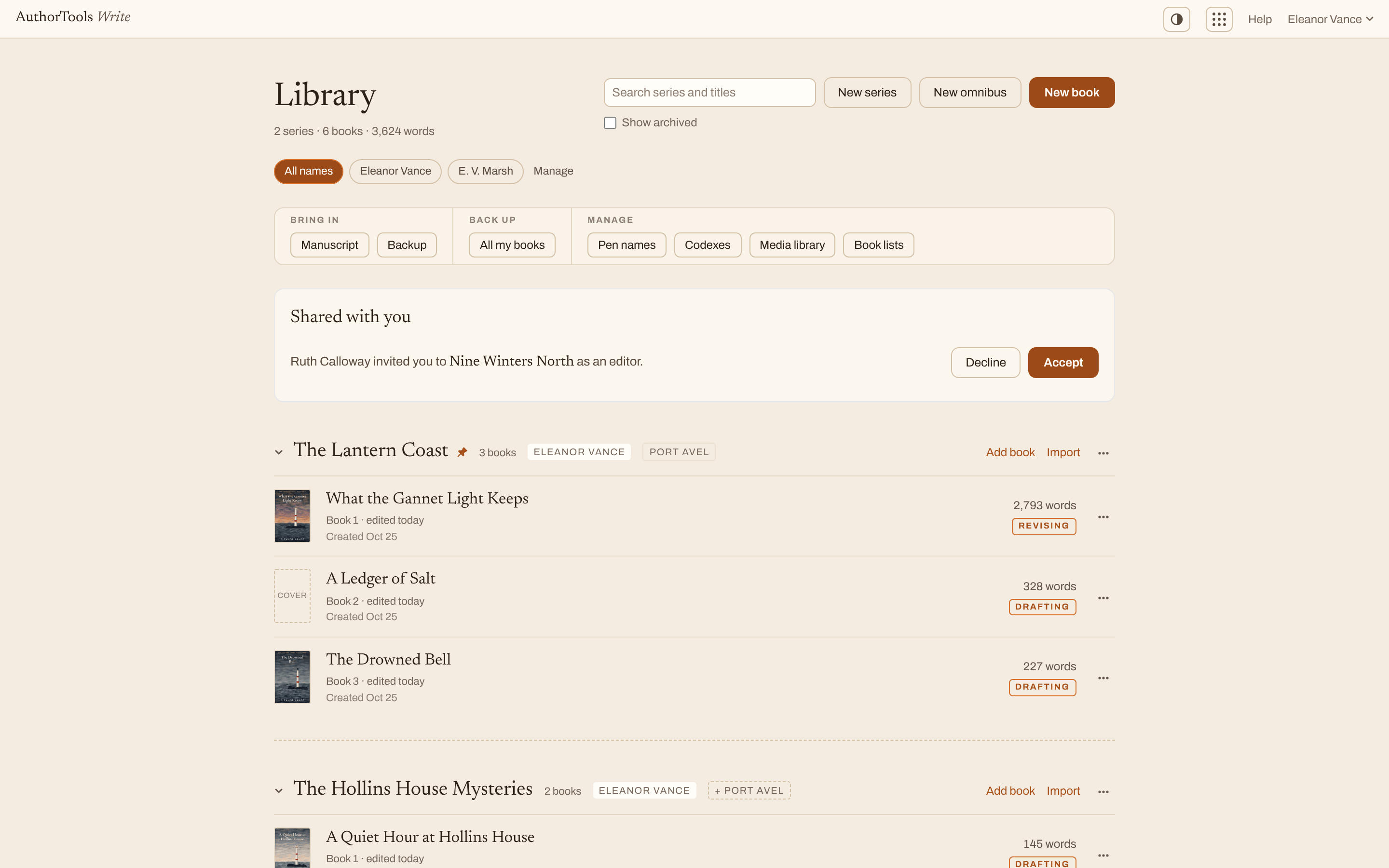 The Library with two pen names and a few series and books, showing the count line under the heading, the search box, the New series and New book buttons at the top right, and the Bring in / Back up / Manage toolbar.
Reading the rows
A series appears as a heading with its books listed beneath it in order. Any omnibuses (boxed sets) made from it sit below its books, under an Omnibuses line. A standalone book gets a row of its own. On a series heading you’ll find:
- a small arrow at the left that folds the series shut, or opens it again;
- the universe it belongs to, shown as a small tag you can click to open the universe’s codex—or, if the series isn’t in a universe yet but the pen name has some, a dashed + universe button (or + and the universe’s name, when the pen name has just the one) to put it in one;
- Add book and Import, which add a new book to this series;
- a … menu for renaming, pinning it to the top, creating an omnibus (boxed set), changing its pen name and/or universe, and archiving. Once a series is archived, the same menu offers Restore series and Delete series for good.
 One series heading in the Library with its first book beneath it, showing the fold arrow, the universe tag, the Add book and Import buttons and the … menu.
Each book row has its own … menu: Open book, Rename book, Change series (or Change series and/or pen name, if you have more than one pen name), and Archive book. Clicking a title opens it in the editor. For numbering, ordering and moving books, see Organize the books in a series.
Other things on the Library screen
- New omnibus appears beside New book once you have more than one book. See Make an omnibus.
- With two or more pen names, a row of chips under the heading—All names, then one for each name—narrows the shelf to one name. Your choice is remembered.
- If someone invites you to a book, a Shared with you card appears just under the toolbar, above your series, with Accept and Decline. The book joins your Library once you accept.
- Every book row shows its cover, its number in the series, when it was last edited and created, its word count and a status (Drafting, Revising, Final or Published). Drag series, or the books inside a series, to put them in the order you like.
Pin and fold your series
With a lot of series, you can keep the ones you’re working on close at hand:
- Pin to top (in the series’ … menu) moves it above the rest, marked with a small pin. Click the pin, or choose Unpin from top, to put it back. Pinned series keep their shelf order among themselves, and you can drag them to reorder.
- Fold a series shut with the arrow beside its name, and its books are tucked away until you open it again. A search still finds books in a folded series.
Write remembers both with your account, so the Library looks the same the next time you open it, on any device.
The toolbar
Just under the heading, above your series, is a bar with three groups of buttons, each with a label:
Bring in
- Manuscript—a manuscript from Word, Markdown or plain text, as a new book.
- Backup—a book’s backup zip from Write, restored just as it was: over the book it came from, or as a new book.
Back up
- All my books—every book you own, each as its own backup, in one zip. A good habit before anything big.
Manage
- Pen names—the names you publish under, the universes their series share, and your About the Author bios and copyright pages (Write your author bio and your own copyright page).
- Codexes—your universes and their codexes: the characters, places, factions and rules that a setting’s series share.
- Media library—every picture your books print, by book, series, universe, or all of them together (The media library).
- Book lists—your catalogue as the back matter prints it, for “Also by” pages (Make an “Also by” page with a book list).
New series and New book
Both are at the top right. New book makes a standalone. A book that belongs in a series is added from that series’ row instead, so it lands in the right place with its number. New series asks for a name, which pen name (if you have more than one), and—if you like—a universe.
Archiving and deleting aren’t the same thing
Archiving sets a book or series aside: it leaves the list but is kept safe, and Restore brings it back. Deleting for good is exactly that, and the menu will ask you to confirm before it does anything. See Archive and restore a book or series.
Help and feedback
Help, at the top right, opens this help site in a new tab. Your name beside it opens a menu with Your account, Feedback & help and Sign out. Feedback & help opens the support drawer, where you can ask a question or tell us what’s not working. See Send feedback or ask for help.
No comments to display
No comments to display