
Archive and restore a book or series
Archiving puts a book or a whole series away without losing anything. It drops out of the Library’s usual view, but it’s kept exactly as it was, and one click brings it back. This page shows you how to archive, find and restore a book or series, and how deleting for good works. For chapters, scenes and notes, see Organize chapters and scenes, Write your first scene and Keep notes beside your book.
Archive a book
- In the Library, open the … menu on the book’s row.
- Choose Archive book.
It happens at once, with no question asked. The book leaves the list and the counts under the Library heading. Its chapters, notes and version history are untouched, and its number and place in the series are kept.
Archive a series
On the series’ row, open … and choose Archive series. The series and every book in it are hidden together. The books aren’t archived one by one; they’re hidden along with their series, and they come back when it does.
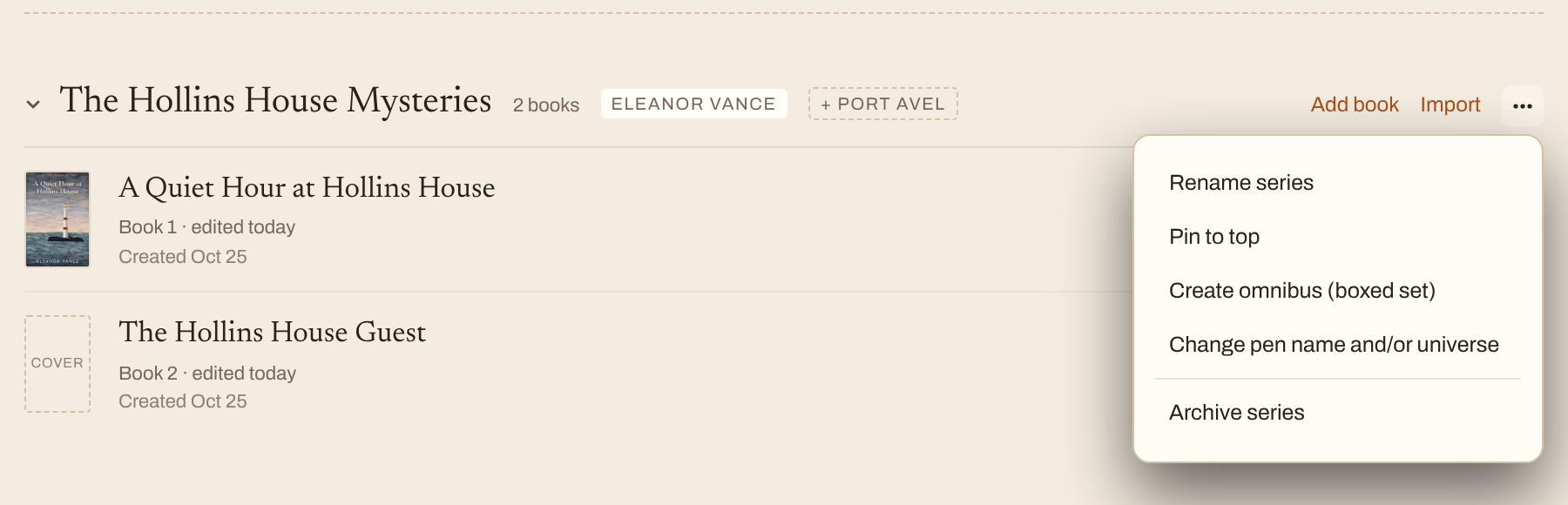 The … menu open on a series row in the Library, with Rename series, Pin to top, Create omnibus (boxed set) and Archive series visible.
Find what you’ve archived
Tick Show archived, under the search box at the top of the Library. Archived series and books appear dimmed, with an Archived chip. Untick it to hide them again. Search works on them too.
Archiving doesn’t lock a book. An archived book still opens when you click its title, and you can edit it and publish it like any other; it’s just out of the way. If you want to keep writing in it, restore it first so it’s back in your Library.
Restore a book or series
- A book you archived: open its … menu and choose Restore book. It comes back in the same place, with the same number.
- A series: open its … menu and choose Restore series. Its books return with it.
- A book inside an archived series has no Restore book of its own. Restore the series. If you’d also archived one of its books on its own, that book stays archived until you restore it.
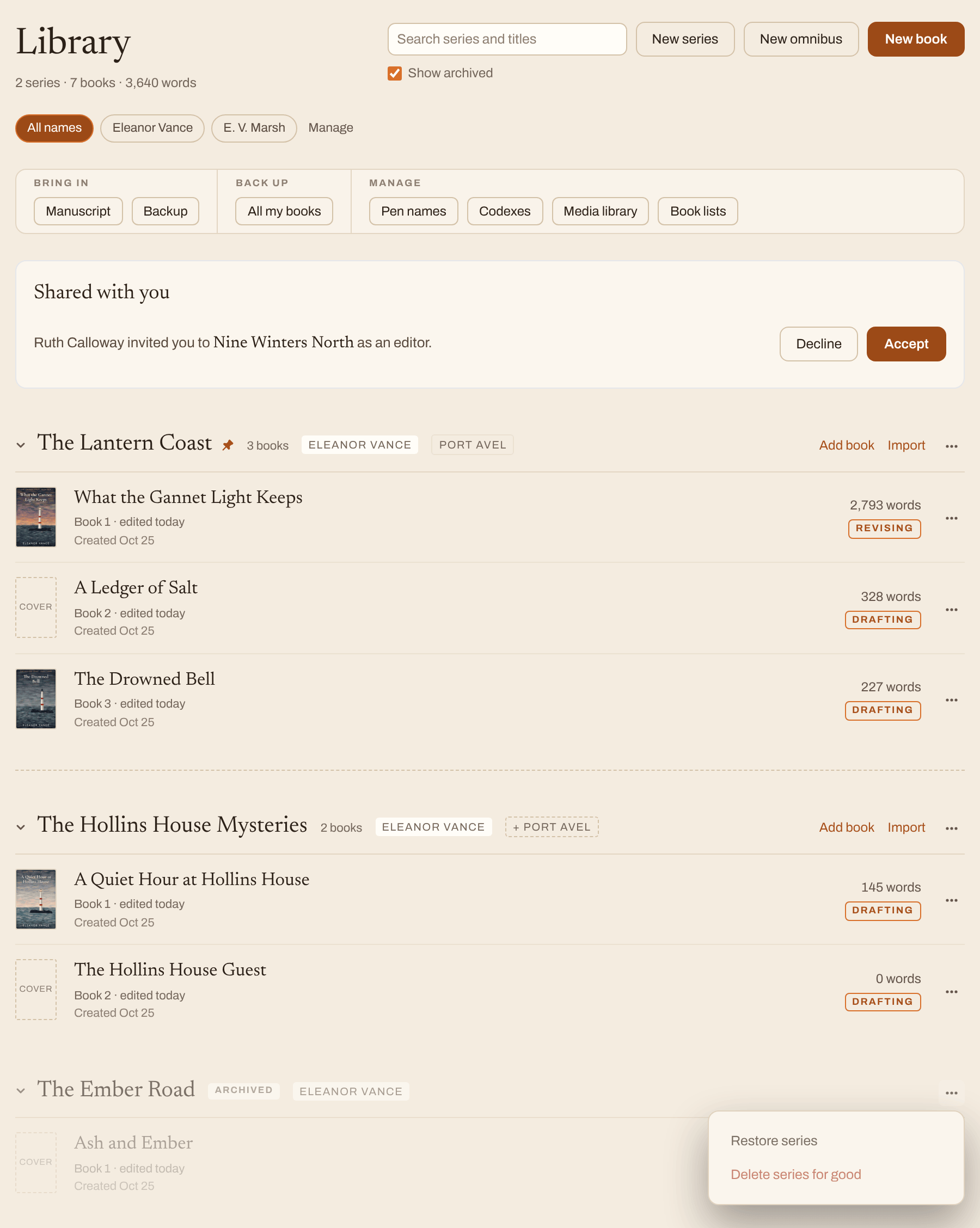 The Library with Show archived ticked, showing one dimmed series with its Archived chip, its … menu open on Restore series and Delete series for good.
What archiving does to the things around a book
- Omnibuses. An omnibus that holds an archived book keeps it in its list, faded, and leaves it out of the build and the word count until you restore it. See Make an omnibus. If you archive a series, any omnibus on that series’ shelf is hidden with it. An omnibus on a different shelf isn’t hidden.
- Collaborators and shared books. Only a book’s owner can archive, restore or delete it. People you’ve shared a book with keep their access, but the book leaves their Library too (they can tick Show archived to see it), and an invitation to an archived book no longer shows up for the person you asked. See What each role can do.
- Backups. All my books under Back up skips books you archived on their own; a book hidden only because its series is archived is still included. See Back up your books.
- Counts and lists. Archived books aren’t counted in the totals on your pen names, and the “printed in” counts on book lists leave them out.
- Pictures. Find unused in the media library doesn’t look inside archived books, so a picture used only there can show as unused.
- Pen names. You can’t delete a pen name while archived books or series are still under it.
Delete for good
Deleting is a second step, offered only from the archive. Archive the book or series, tick Show archived, then:
- on a book, open … and choose Delete book for good;
- on a series, open … and choose Delete series for good.
Your browser asks you to confirm. The message reads: Delete “Title” permanently? This removes it and everything inside it, including its version history. There is no undo. For a series it says the series “Name” and every book in it.
Deleting a series deletes every book in it. Deleting a book also removes it from any omnibus that held it, ends everyone’s access to it, and deletes the pictures that were kept for that book or series alone. Pictures kept for a universe or for all your books stay.
Good to know
- Delete for good is only offered on a book you archived yourself. For a book hidden by its series, delete the series.
- If you might want it back, download its backup before you delete: open the book, choose Book → Publish, and click Download a backup (Back up your books). A backup can be brought in again with Restore from a backup.
No comments to display
No comments to display