
Book details: title, ISBNs, cover and description
Book details is where a book’s own facts live: its title and subtitle, its place in a series, its ISBNs, publication date, description and cover. Write uses them to fill in the title page, the copyright page, the ebook’s information for the stores, and the Library. This page walks through each field and shows you where it ends up.
Open it
In the editor, choose Book → Details. On a phone, tap More and choose Book details (see Write on a phone or tablet). Edit what you need and click Save details. The cover is the exception: it saves the moment you change it.
Only a book’s owner and coauthors see Details. Editors and readers don’t.
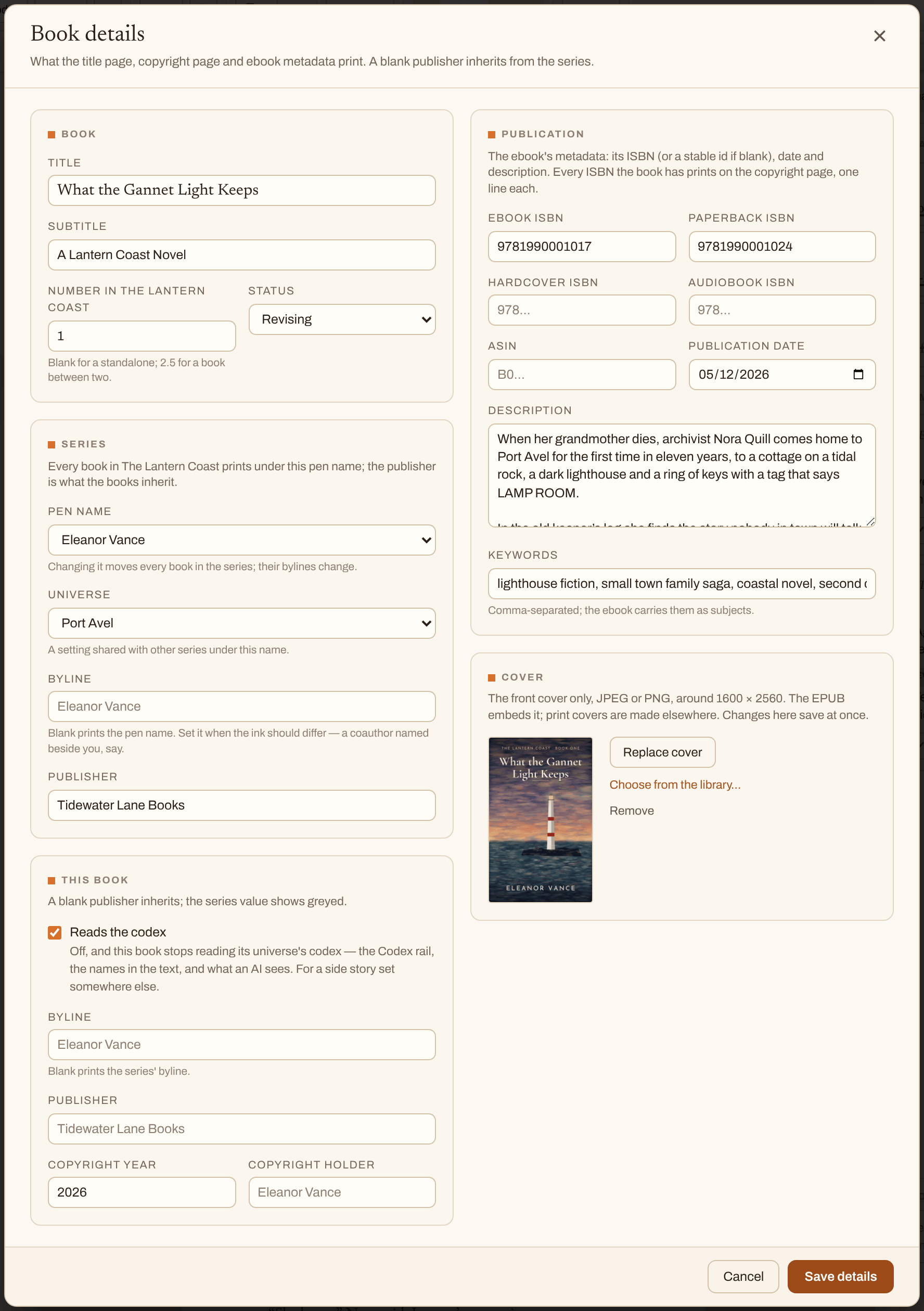 The Book details window open over a book in a series, with the Book, Series and This book cards on the left and the Publication and Cover cards on the right.
The Book card
- Title and Subtitle. In print, the title page sets the title in capitals, with the subtitle in italics beneath. The ebook carries both. The Library lists the book by its title.
- Number (shown as Number in your series). Leave it blank for a standalone, or type 2.5 for a book between two. It prints on the title page as “Book 3 of Your Series”, and the ebook records the book’s position in the series.
- Status. Drafting, Revising, Final or Published. It’s a note for you: the Library shows it as a small tag on the book’s row. It doesn’t change what prints.
Series, byline and publisher
A book in a series has a Series card (pen name, universe, byline and publisher) as well as This book (byline, publisher, copyright year and holder); a standalone has one Imprint card. These have a page of their own: Set your byline and publisher (imprints). One thing to know here: Reads the codex appears once the book is in a universe, and turning it off stops the book using that universe’s codex.
The Publication card
- Ebook ISBN, Paperback ISBN, Hardcover ISBN and Audiobook ISBN. In the standard copyright wording, every ISBN you fill in prints on its own line, labelled (paperback), (hardcover), (ebook) or (audiobook). A book with none prints no ISBN line. The ebook ISBN is also the EPUB’s identifier. Without one, Write gives the file its own stable identifier, which is fine for most stores.
- ASIN. Write keeps it with the book’s details, but it isn’t printed anywhere and isn’t put into the EPUB.
- Publication date. The ebook carries it. If you haven’t set a Copyright year, the copyright page uses this date’s year; with neither, it uses the current year.
- Description. The blurb for the ebook’s details. The stores and reading apps show it. It doesn’t print inside the book.
- Keywords. Separate them with commas. The ebook carries each as a subject.
For the ebook, see Publish an ebook (EPUB).
The Cover card
The cover is the front cover only, a JPEG or PNG, around 1600 × 2560 pixels and under 10 MB. Print covers are made elsewhere.
- Upload cover (or Replace cover) picks a file from your computer.
- Choose from the library… picks a picture already in your media library, such as another book’s cover.
- Remove takes the cover away.
The EPUB embeds the cover, and the Library shows it as a small picture beside the title. Without one, the publish checklist warns you (see Check your book before you publish).
Where each field shows up
- Title page: title, subtitle, series line (from the number and series name), byline and publisher.
- Copyright page: year, holder, publisher, title, author, series and every ISBN, through the fill-in fields. The standard wording uses year, holder, ISBNs and publisher.
- Ebook information (EPUB): title, subtitle, author, publisher, publication date, description, keywords, series and position, a rights line (“Copyright © 2026 Your Name”), the ebook ISBN and the cover.
- Library: the cover picture, the title, “Book 3” from the number, and the status tag.
Good to know
- Title page and copyright page follow these fields on their own. Change a title or publisher here and both update.
- There isn’t a language setting. Ebooks are marked as English.
- A copyright page of your own prints the ISBNs only if its wording includes
{isbns}or the matching ISBN field. See Write your author bio and your own copyright page. - For the rest of the Book group—Page setup and Publish—see Find your way around the editor.
No comments to display
No comments to display