
Write on a phone or tablet
This page shows you how Write changes on a smaller screen, where each thing from the desktop toolbar has gone, and what isn’t there yet.
The layout follows the window, not the device
Write picks a layout from the width of the window:
- 1280 pixels or wider: the full desktop layout, with the manuscript list on the left and the review rail beside the page.
- 1024 to 1279: the tablet layout.
- Under 1024: the phone layout.
A large tablet turned sideways may get the desktop layout, and a narrow browser window on a computer gets the tablet one. If you resize across a line, Write carries the open scene across, unsaved typing included.
On a tablet
The page and toolbar are still there, with a few changes:
- The manuscript list is a drawer. Tap the three-line button at the left of the toolbar to slide it out. Tapping a scene opens it and closes the drawer, as does tapping outside it or the ×.
- Toolbar groups fold into menus. View, Images and Book (Details, Page setup and Publish) are dropdowns, and zoom is one button showing the percentage. Notes, Codex, History and Listen stay as buttons, and the Write / Outline / Preview switch is still at the left.
- Find and Share are in the bar above the toolbar.
- The review rail starts closed, unless you’ve opened it before in this browser. Tap the Review tab on the right edge to open it. Opening Review closes Notes, and opening Notes, Codex or History closes Review.
On a phone
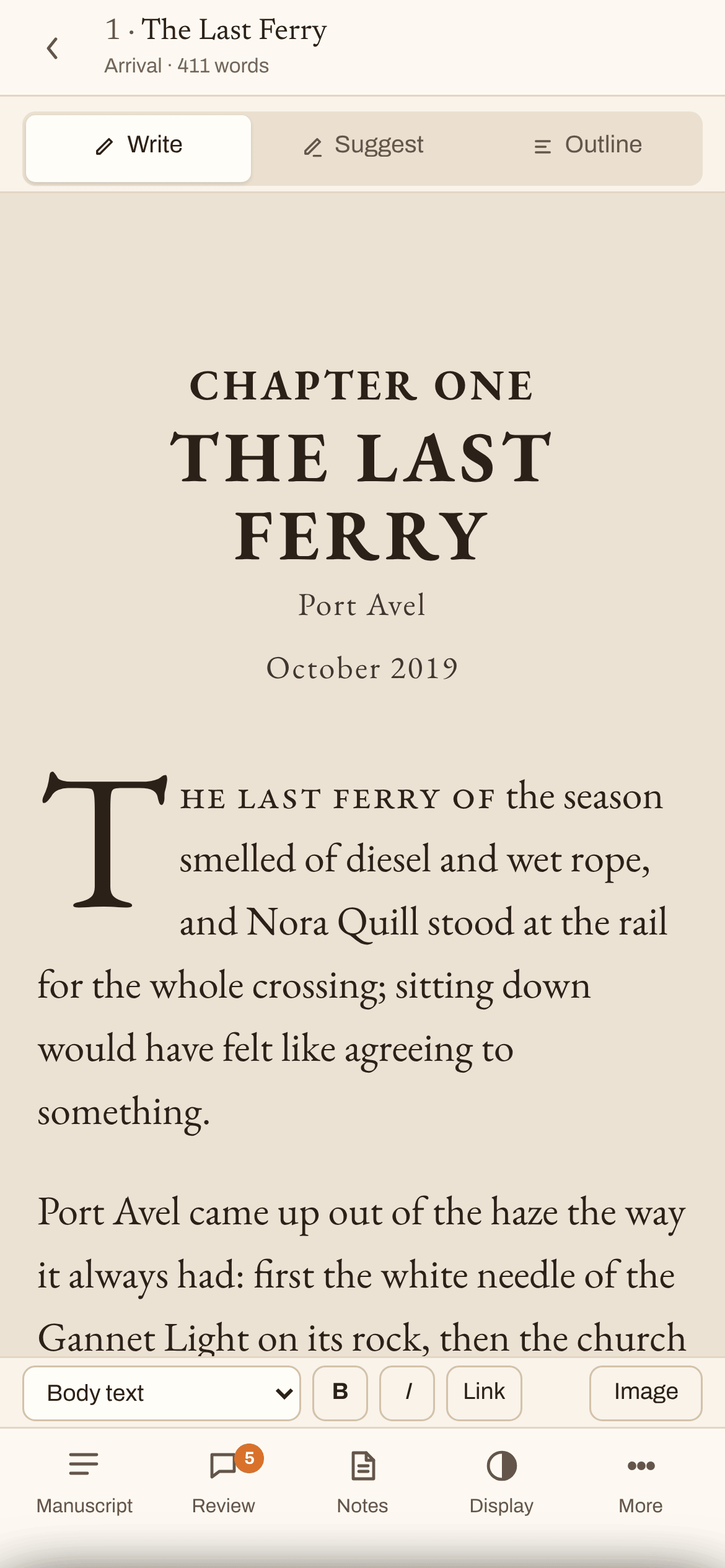 A scene open on a phone, showing the header, the Write / Suggest / Outline row, the paragraph-style strip and the five-tab bar with a number on Review.
In the header, the arrow at the left opens your Manuscript; tap the chapter title beside it to rename the chapter (if you’re allowed to). Under it are the scene’s name and word count, plus a status when it isn’t simply saved: saving…, not saved, needs a decision or paused for maintenance.
Below it, Write, Suggest and Outline choose what the screen is for. (Suggest isn’t offered to readers; for an editor, Write is greyed out, since editors suggest. See Suggest changes instead of making them.)
While you’re writing, a strip above the tab bar holds the paragraph style, B, I, Link and Image. Image opens a sheet with Insert an image here and Manage images.
The five tabs
Tap a tab to open it; tap it again to close it.
- Manuscript—the chapter and scene list, full screen, with Library at the top right. The gear and … menus on chapters and scenes are always showing. To reorder, press and hold a row for a moment, then drag.
- Review—comments and suggestions on what’s open, with a count of open items on the tab. Tapping one takes you to it. See Review suggestions and comments.
- Notes—the scene’s notes, the chapter’s and the book’s. See Keep notes beside your book.
- Display—how the text reads on this phone: Size (12 to 24), Line spacing (Tight, Normal or Loose), Font (The book’s or This phone’s), Theme, and Show page layout, which swaps the easy-reading text for the printed page. These settings change only what you see here, never the book.
- More—everything else, below.
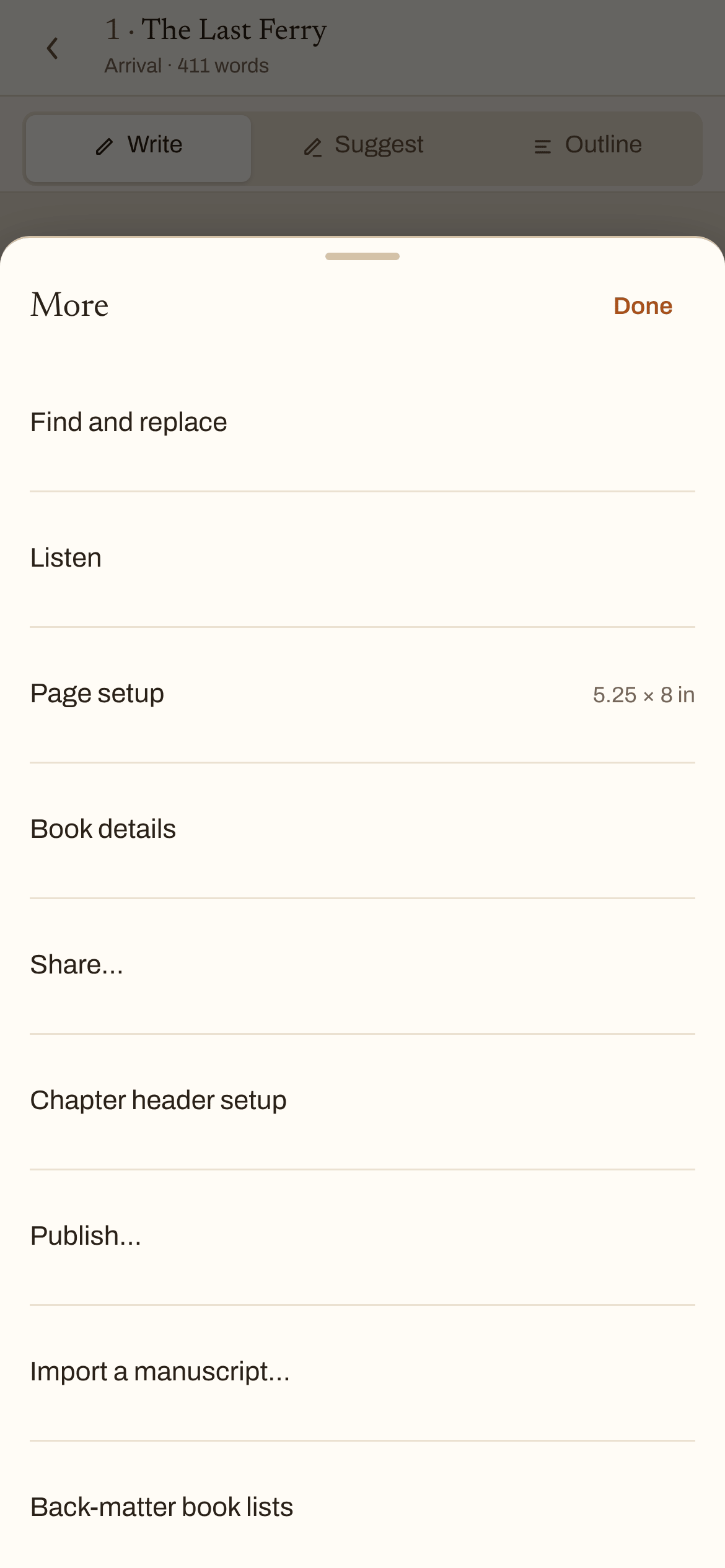 The More sheet on a phone, starting with Find and replace, Page setup, Share… and Publish…. Feedback & help is further down the list.
Where the desktop menus went
Open More for these. Each closes the sheet and takes you straight there.
- Find and replace and Listen—only in Write view. (Find and replace, Listen to your book read aloud)
- Page setup—for the book’s owner. Book details (Book details: title, ISBNs, cover and description), Chapter header setup, Publish… and Import a manuscript…—for owners and co-authors.
- Share…—who’s on the book (Invite an editor, co-author or reader).
- Back-matter book lists, Codex and Media library (The media library)—each opens its own page. Codex opens the universe’s codex rather than a side panel, or your list of universes if the book isn’t in one.
- Show archived—a switch for archived chapters and scenes in the list.
- All Author Tools ↗, Your account ↗, Feedback & help (Send feedback or ask for help), Privacy policy ↗, Terms of service ↗ and Sign out.
Front and back matter are in the Manuscript list.
What isn’t on a phone yet
- History. An earlier version can’t be opened. Use a computer or tablet. (Go back to an earlier version)
- Preview. The page-by-page proof view is for computers and tablets. Publishing is in More.
- The codex beside your writing. No codex panel, underlined names or hover cards.
- The outline in a side rail, zoom, margin guides and the dark-page switch. The full Outline view is there; use Display to change the theme.
Good to know
- Entries your role can’t use don’t appear. Page setup, for instance, is only there for the book’s owner. During a maintenance pause, the owner and co-author entries leave More until it ends (Notices and maintenance).
- The book page has no top bar on a phone, so there’s no Help link or account menu. Feedback & help is in More.
- Pull a sheet down, tap outside it, or tap Done to close it.