
Front and back matter
Front matter is everything before chapter one—the title page, the copyright page, a dedication, the contents. Back matter is everything after the last chapter—acknowledgments, an afterword, your author bio, a list of your other books. This page is about adding those sections, arranging them, and the handful of settings each one has.
Where they live
In the manuscript list on the left, Front matter sits above your chapters and Back matter below them. Click any section to open it in the middle of the screen.
Add a section
Click the + beside Front matter or Back matter. A small window opens with the sections most books have, ready to click:
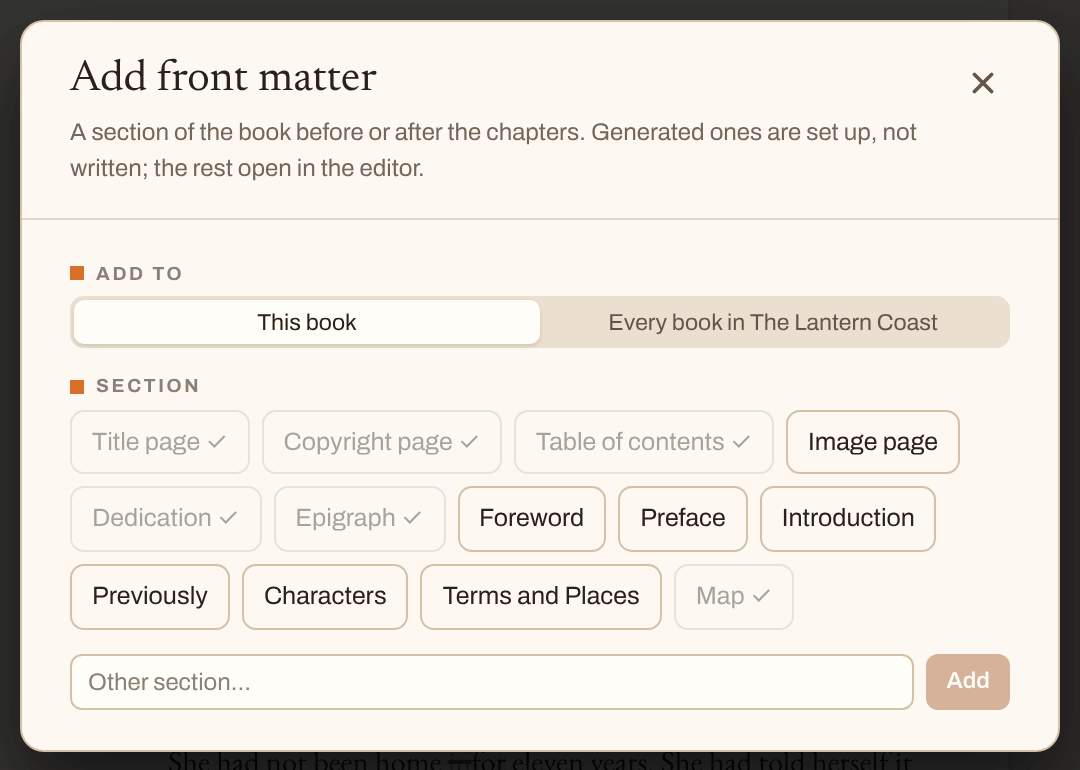 The Add front matter window, with Add to (This book / Every book in the series) and the list of sections.
- Sections you write yourself—in front matter, a dedication, an epigraph, a foreword, a preface, an introduction, a Previously recap, a list of characters, or terms and places; in back matter, acknowledgments, an afterword, a glossary and the like. Choose one, or Other section… to give it any name you like. It opens on a page, ready for you to write in, just like a scene.
- Sections Write makes for you, which wear a small Auto tag once they’re in your manuscript list. These are set up rather than written: open one, choose its options, and click Save section. They stay current on their own after that:
- Title page—your title, subtitle, series line, byline and publisher, from Book details.
- Copyright page—the standard wording, or one of your own copyright pages, with the year, ISBNs and the rest filled in. See Write your author bio and your own copyright page.
- Table of contents—your chapters (and parts), with page numbers in print and links in the ebook. Tick List front and back matter in its options if you want your dedication, foreword, afterword and the rest listed too, then click Save section. When you open it, the page under As it will print shows estimated page numbers, so it appears in a moment instead of waiting for the whole book to be set. Preview and Publish print the real numbers.
- Book list—one of your book lists, for an “Also by” page. See Make an “Also by” page with a book list.
- About the author—one of your author bios, so every book under that pen name says the same thing.
- Image page—a page that is a picture: a map, an illustration, an art plate.
Front matter offers the title page, copyright page, table of contents and image page. Back matter offers the about-the-author page, book list and image page.
If the book is in a series, the window also asks where the section goes: This book, or Every book in the series. A section for every book is written once and appears in each of them—handy for an author bio or a reading-order page. See Sections a series shares.
Put them in order
Drag a section up or down in the list, or use Move section up and Move section down from its … menu. The order in the list is the order in the book.
The settings above each section
When a section is open, a slim bar across the top holds its settings:
- Print edition and Ebook—which editions the section appears in. Both are on to begin with. See Choose where a section appears: print, ebook or both.
- Starts on—where the section begins in print: the next page, a right-hand page or a left-hand page. Write adds a blank page before it when one is needed, and the blank keeps its running head and page number, so nobody wonders whether it was meant to be there. Most front matter starts on a right-hand page; a copyright page, which sits on the back of the title page, doesn’t offer the choice. A left-hand page is for the left half of a picture across two pages (see Choose where a section appears).
- Show title—turn it off to print the section without its heading, as a dedication often is. The name still shows in your list and in the contents.
- Title alignment—where this section’s heading sits: as the book’s (the same as your chapter titles, set in Page setup), or left, centred or right for this section alone. A centred Foreword in a book of left-aligned chapters, say. The editor, the print preview, the PDF and the ebook all follow it. It’s there whenever Show title is on, except on the title page and image pages.
- Centre on the page—sets the whole section in the middle of the page, as a dedication or epigraph usually is. This is for print; an ebook flows from the top.
- Background…—a picture behind every page of the section, in print.
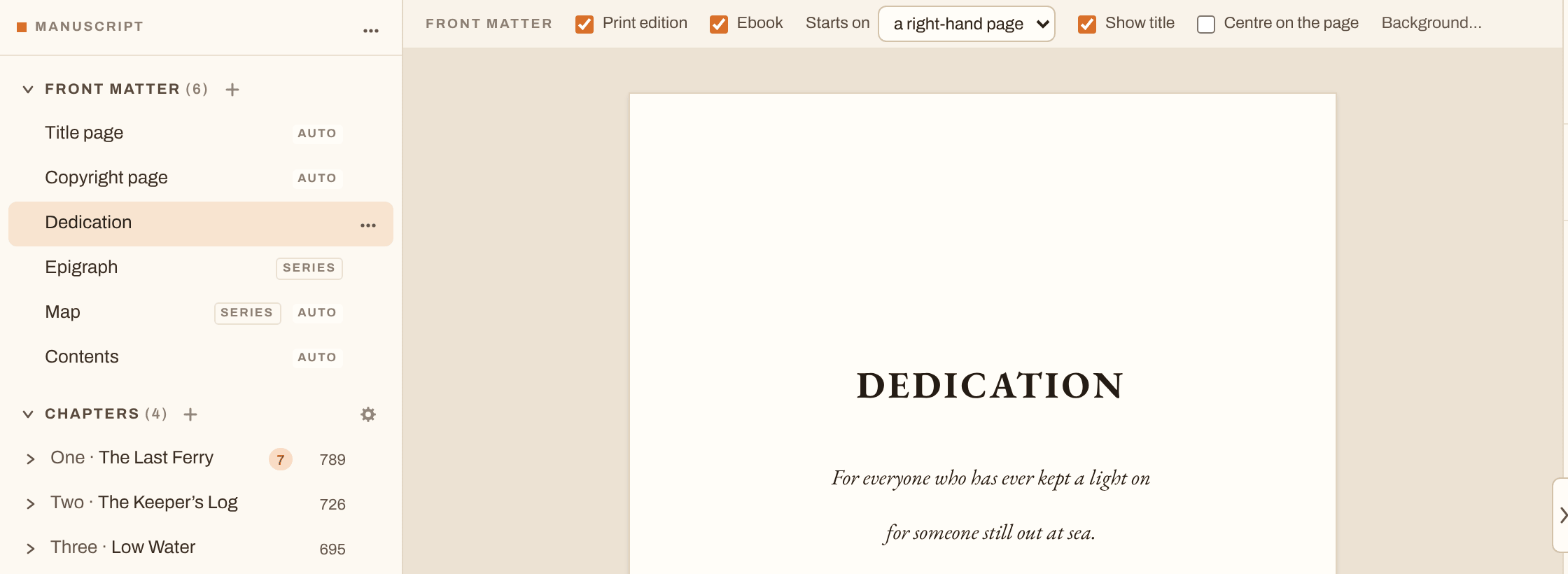 An open front-matter section with the slim settings bar across the top, showing Print edition, Ebook, Starts on, Show title, Centre on the page and Background….
Not every section has every setting; you’ll only see the ones that apply.
Remove a section
Choose Remove section from its … menu. If the section comes from the series rather than this book, the menu offers Leave out of this book instead, which hides it here and leaves the other books alone.
No comments to display
No comments to display